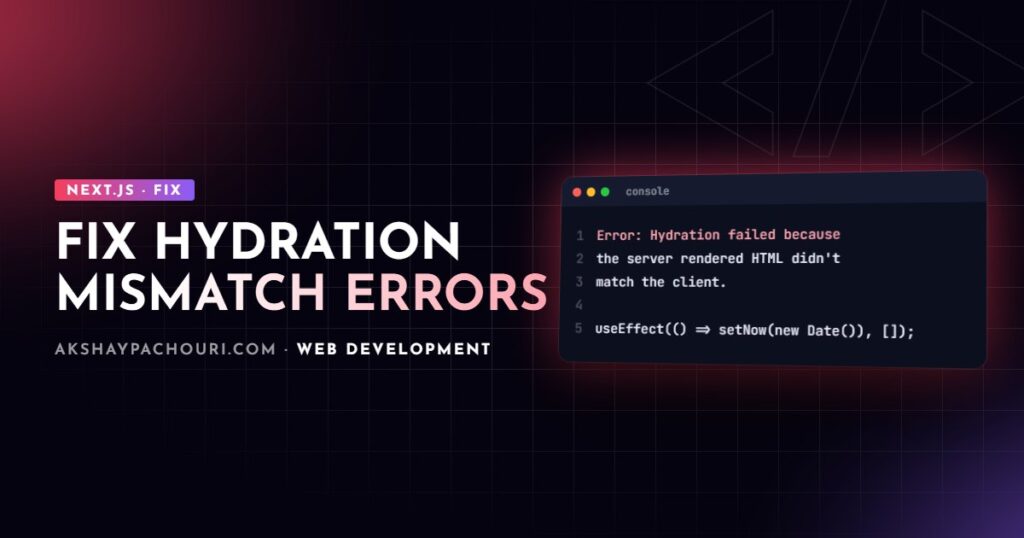
A hydration mismatch shows up in React 19 and recent Next.js versions as Hydration failed because the server rendered HTML didn't match the client. As a result this tree will be regenerated on the client. On React 18 you would see Text content does not match server-rendered HTML or Hydration failed because the initial UI does not match what was rendered on the server. The cause is always the same: the first client render produced different output from the HTML the server sent. Here is how to find which part, and fix it properly.
Quick fix
The most common cause is a value that differs between server and browser, such as the current time, a locale-formatted date, Math.random(), or anything read from window or localStorage during render.
- Read the diff in the error overlay or console. React 19 prints the server and client values with
+and-markers, which usually points straight at the component. - Move the browser-only value into state that is set in
useEffect, so the first client render matches the server. - Reload with a production build to confirm the warning is gone.
'use client';

import { useEffect, useState } from 'react';

export function LastUpdated({ iso }: { iso: string }) {
  // Server and first client render both output the stable ISO date
  const [label, setLabel] = useState(iso.slice(0, 10));

  useEffect(() => {
    // Runs only in the browser, after hydration
    setLabel(new Date(iso).toLocaleString());
  }, [iso]);

  return <time dateTime={iso}>{label}</time>;
}
Common causes of a hydration mismatch
1. Dates, time zones and locale formatting
new Date().toLocaleString() on a server in UTC and a browser in IST returns different strings. Even toLocaleDateString() on a fixed date can differ, because the server’s default locale and time zone are rarely the user’s. Either format with an explicit locale and time zone on both sides, or format on the client after mount as shown above.
// Deterministic on server and client
const fmt = new Intl.DateTimeFormat('en-IN', {
  dateStyle: 'medium',
  timeZone: 'Asia/Kolkata',
});
fmt.format(new Date(iso));
2. Random values and generated IDs
Math.random(), crypto.randomUUID() or an incrementing counter used for element IDs will never match. Use React’s useId() for IDs, which is designed to be stable across server and client, and generate random data on the server and pass it down as a prop.
3. Branching on typeof window or browser storage
This pattern looks safe but guarantees a mismatch, because the server takes one branch and the client’s first render takes the other:
// Broken: different output on server and client
const isMobile = typeof window !== 'undefined' && window.innerWidth < 768;
return isMobile ? <MobileNav /> : <DesktopNav />;
Render a consistent default, then update after mount. Better still, use CSS media queries for layout differences so the HTML does not need to change at all. For values stored in localStorage, such as a theme, read them in an effect, or use useSyncExternalStore with a getServerSnapshot that returns the server default.
4. Invalid HTML nesting
Browsers repair invalid HTML while parsing, so the DOM React finds is not the tree it rendered. Classic examples:
- A
<div>(or a component that renders one) inside a<p>. The parser closes the paragraph early. - An
<a>inside another<a>, often via a card wrapped in<Link>that contains another link. <tr>directly inside<table>without<tbody>; the parser inserts one.- Interactive elements nested inside
<button>.
React usually logs a separate warning such as In HTML, <div> cannot be a descendant of <p>. Fix the markup; changing <p> to <div> is often enough.
5. Browser extensions modifying the page
Password managers, grammar checkers and translators inject attributes or elements before React hydrates. React 19 is more tolerant of extra elements in <head> and <body>, but attributes added to <html> or <body> still trigger warnings. Test in a private window with extensions disabled; if the error disappears, it is not your bug. You cannot control your users’ extensions, so a narrowly scoped suppressHydrationWarning on <body> is a reasonable response.
6. HTML modified between server and browser (the one people miss)
If the error appears only in production, check what sits between your server and the user. CDN features that rewrite HTML, such as email address obfuscation, script deferral or HTML minification that removes whitespace or comments, can change the markup React expects. Compare the raw HTML from your origin with what the browser receives via View Source. If they differ, disable that feature for the affected routes. The same applies to server-side HTML injection by analytics proxies or A/B testing tools.
Step-by-step diagnosis
- Read the diff. In development, the Next.js error overlay shows the component stack and the mismatched text or attribute. Start there rather than guessing.
- Disable JavaScript and view the page. What you see is exactly the server HTML. Compare it with the hydrated page.
- Bisect. Comment out halves of the component tree until the warning disappears. Mismatches are local, so this converges quickly.
- Rule out extensions with a clean browser profile or private window.
- Rule out the network layer by comparing origin HTML (for example with
curl) with the HTML the browser received.
# Fetch the raw server HTML and search for the mismatched text
curl -s https://example.com/page | grep -n "Last updated"
Correct fixes for client-only content
Render after mount with useEffect
For small bits of client-only UI, a mounted flag is clear and explicit:
'use client';

import { useEffect, useState } from 'react';

export function ClientOnly({ children }: { children: React.ReactNode }) {
  const [mounted, setMounted] = useState(false);
  useEffect(() => setMounted(true), []);
  return mounted ? <>{children}</> : null;
}
Reserve space with a placeholder of the same size, otherwise the late content causes layout shift.
Skip server rendering with dynamic()
For whole components that depend on browser APIs, such as a map, chart or WebGL canvas, load them with ssr: false. In Next.js 15 and later this option is only allowed inside a Client Component, so put the dynamic() call in a 'use client' file:
'use client';

import dynamic from 'next/dynamic';

const Map = dynamic(() => import('./map'), {
  ssr: false,
  loading: () => <div className="map-placeholder" />,
});

export function MapSection() {
  return <Map />;
}
Use suppressHydrationWarning narrowly
suppressHydrationWarning silences the warning for one element’s own attributes and text content, one level deep. It does not fix the mismatch, and it does not cover children. It is appropriate for a timestamp you know will differ, and for <html> when a theme script sets a class before hydration (libraries like next-themes document this). Do not put it on a layout wrapper to make errors go away; you will hide real bugs.
<html lang="en" suppressHydrationWarning>
  <body>{children}</body>
</html>
Preventing hydration errors
- Keep render functions pure: no
Date.now(), randomness or browser globals during render. - Pass time-sensitive values from the server as props and format them deterministically.
- Use CSS, not JavaScript, for responsive layout differences.
- Validate markup nesting, and keep link-wrapped cards free of nested links.
- Test production builds behind your real CDN configuration before launch.
Key takeaways
- A hydration mismatch means the first client render differs from the server HTML.
- Dates, random values and
windowchecks during render are the usual causes. - Invalid nesting like
<div>inside<p>causes mismatches because the browser rewrites the DOM. - Defer client-only values to
useEffect, or usedynamic()withssr: falsefrom a Client Component. - Use
suppressHydrationWarningonly on specific elements where a difference is expected.
Frequently asked questions
Is a hydration mismatch only a warning or does it break the page?
It is a real error. React discards the server HTML for the affected tree and re-renders it on the client, which costs performance and can cause visible flicker or lost state.
Why does the hydration error only happen in production?
Production often adds a CDN or proxy that rewrites HTML, different server time zones, or cached HTML that is older than the client bundle. Compare origin HTML with what the browser receives.
Can a browser extension cause a hydration mismatch?
Yes. Extensions that inject attributes or elements before hydration can trigger it. If the error disappears in a private window with extensions disabled, the extension is the cause.
Why can’t I use dynamic with ssr false in a Server Component?
Next.js 15 and later only allow ssr: false in Client Components, so move the dynamic() call into a file marked 'use client' and import that from the Server Component.
Stuck on hydration errors in a Next.js or React app? Get in touch and I can help track down the cause.