Three.js z-fighting shows up as surfaces that flicker, shimmer or show striped, zig-zag patterns when the camera moves, typically where a decal, label or floor plane sits on top of another surface. There is no console error; the usual symptom is two faces at (almost) the same depth fighting over the same pixels, often made worse by a camera set up like new PerspectiveCamera(75, aspect, 0.001, 100000). This guide shows the quick fix and every other cause, in the order I check them.
Quick fix
The most common cause is a poor near/far ratio on the camera, which leaves the depth buffer without enough precision to separate nearby surfaces. Fix it in this order:
- Raise the camera’s near plane as high as your scene allows and lower the far plane to just beyond the farthest visible object.
- If two surfaces are genuinely coplanar (a decal on a wall, a road on terrain), offset one of them, either physically or with
polygonOffset. - Only if the scene really spans huge distances, enable
logarithmicDepthBufferon the renderer.
// before: near 0.001, far 100000 – depth precision wasted
// after: tight range around what the user can actually see
const camera = new THREE.PerspectiveCamera(50, width / height, 0.1, 200);

// after changing near/far at runtime:
camera.updateProjectionMatrix();
Why z-fighting happens
For every pixel, the GPU stores a depth value and only draws a new fragment if it is closer than what is already there. That depth value has limited precision, and in a perspective projection that precision is not spread evenly: most of it is concentrated close to the near plane, and it gets coarser with distance. When two surfaces are closer together than the depth buffer can resolve at that distance, rounding decides the winner per pixel, and as the camera moves the winner changes. That is the flicker.
The near plane affects this far more than the far plane. Pushing near from 0.1 down to 0.001 shifts even more precision into a tiny slice in front of the camera that usually contains nothing.
Causes, from most to least common
1. Near plane too small or far plane too large
Starter code and copied examples often use extreme values “to be safe”. Choose them from your scene instead: near should be the closest distance the camera can get to a surface (respecting your OrbitControls.minDistance), far just past the farthest object. If you need a sky or distant background, render it as a skybox or scene.background, which does not need a huge far plane.
controls.minDistance = 1;     // camera never gets closer than 1 unit
controls.maxDistance = 20;
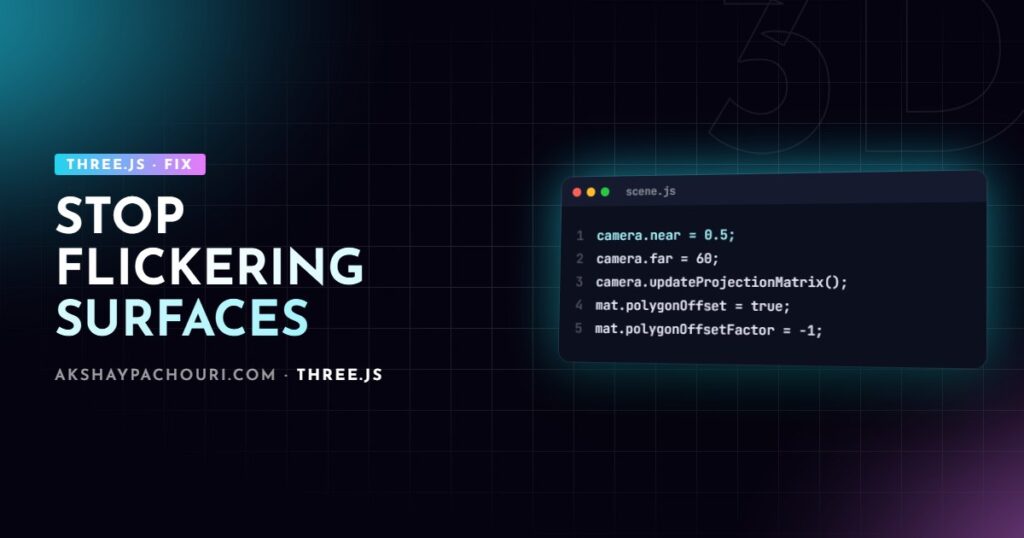
camera.near = 0.5;            // safely below minDistance
camera.far = 60;
camera.updateProjectionMatrix();
2. Genuinely coplanar geometry
Decals, labels, stickers, floor markings and UI planes placed exactly on a surface will z-fight at any camera setting. The cleanest fix is a small physical offset along the surface normal:
label.position.copy(hitPoint).addScaledVector(hitNormal, 0.002);Scale the offset to your units and viewing distance; too small and it still fights at a distance, too large and the label visibly floats. If you cannot move the geometry, use polygonOffset, which nudges depth values in the rasteriser without moving vertices:
const decalMaterial = new THREE.MeshStandardMaterial({
  map: decalTexture,
  transparent: true,
  polygonOffset: true,
  polygonOffsetFactor: -1,   // negative pulls toward the camera
  polygonOffsetUnits: -1,
});
For projected decals on curved meshes, DecalGeometry from three/addons/geometries/DecalGeometry.js combined with polygonOffset is the standard approach.
3. Duplicate or overlapping faces in the model
Models exported from CAD tools or modelled quickly in Blender sometimes contain duplicate faces, an inner and outer shell, or two objects at the same position (for example a mesh exported twice). Nothing in your Three.js code is wrong; the asset is. Check in Blender with Merge by Distance and by selecting overlapping objects, or inspect mesh counts with gltf-transform inspect. Clean geometry helps file size too; see my guide to optimizing glTF for Three.js.
4. Transparent objects writing depth
Not strictly z-fighting, but it looks similar: transparent surfaces flicker or hide each other depending on angle. Transparent objects are sorted by their centre point, which fails for intersecting or nested transparent meshes, and if they write depth they can block things behind them.
glassMaterial.transparent = true;
glassMaterial.depthWrite = false;   // still depth-tested, but doesn't occlude
glass.renderOrder = 1;              // draw after the opaque interior
renderOrder gives you explicit control over draw order when automatic sorting gets it wrong. Higher values render later.
5. Scenes with huge depth range: logarithmicDepthBuffer
Some scenes legitimately need both tiny and enormous distances: planetary views, maps, architectural fly-throughs from a city scale down to a door handle. Here a logarithmic depth buffer distributes precision far more evenly:
const renderer = new THREE.WebGLRenderer({
  antialias: true,
  logarithmicDepthBuffer: true,
});
It is not free. It writes depth from the fragment shader, which can disable early depth testing on the GPU and cost performance, and custom ShaderMaterials need the logdepthbuf shader chunks included or they will render at the wrong depth. Recent Three.js releases also added a reversed depth buffer option that improves precision on supporting hardware; check the WebGLRenderer docs for your version before relying on it.
6. The less obvious one: large world coordinates
Experienced developers often miss this. If your model sits thousands of units from the origin (common with GIS data and CAD exports in millimetres with a site origin far away), 32-bit float precision in the vertex positions and matrices becomes the problem. Vertices jitter as the camera moves and coplanar-looking flicker appears even with a sensible near/far. The fix is to recentre the content near the origin:
const box = new THREE.Box3().setFromObject(model);
const center = box.getCenter(new THREE.Vector3());
model.position.sub(center);   // bring the model to the origin
For very large worlds, keep the camera near the origin and move the world around it (a floating origin), rather than flying the camera far out.
Step-by-step diagnosis
- Log the camera range:
console.log(camera.near, camera.far). If near is tiny or far is enormous, fix that first and retest. - Isolate the flickering object: toggle
visibleon meshes in that area. If flicker stops when you hide one, you have two surfaces overlapping. - Check whether they are meant to overlap: a decal or label means offset it; an accidental duplicate means fix the asset.
- Check the world position: log
new THREE.Box3().setFromObject(model). Coordinates in the tens of thousands point to float precision issues. - Check transparency: if the flickering objects are transparent, try
depthWrite = falseand explicitrenderOrder. - Only then try
logarithmicDepthBufferand measure the frame-time impact.
Prevention
- Set near and far from your scene’s real limits at the start of a project, and tie them to your controls’ min and max distance.
- Never place two surfaces at exactly the same position; build an offset into any code that adds labels, hotspots or decals.
- Normalise imported models: centre them at the origin and scale them to sensible units in your loading pipeline.
- Review assets for duplicate geometry before they reach the app.
- Decide a transparency strategy (depthWrite, render order) for glass and overlays up front. If your scene also renders black or not at all, my guide to fixing a Three.js model not showing covers related camera range problems.
Key takeaways
- Z-fighting is a depth precision problem; the camera’s near plane has the biggest influence.
- Tighten near and far first, then offset genuinely coplanar geometry physically or with
polygonOffset. - Transparent flicker is usually sorting and depth writes: use
depthWrite = falseandrenderOrder. - Large world coordinates cause jitter that looks like z-fighting; recentre content near the origin.
- Use
logarithmicDepthBufferonly for scenes that truly need a huge depth range, and measure its cost.
Frequently asked questions
What causes z-fighting in Three.js?
Two surfaces are closer together than the depth buffer can distinguish at that distance, so the GPU picks a winner per pixel that changes as the camera moves. A very small camera near plane makes it much worse.
Does logarithmicDepthBuffer fix all z-fighting?
No, it improves precision across large depth ranges but cannot separate surfaces that are exactly coplanar. Those still need an offset or polygonOffset, and the option has a performance cost.
What values should I use for polygonOffset?
Start with polygonOffsetFactor and polygonOffsetUnits both set to -1 on the material that should appear in front, then increase the magnitude only if flicker remains. Negative values pull the surface toward the camera.
Why do my transparent objects flicker in Three.js?
Transparent objects are sorted by their centre, which breaks for overlapping or nested meshes, and depth writes can make them hide each other. Set depthWrite to false and use renderOrder to control drawing order.
Still seeing flicker in a scene you need to ship? Get in touch and I can take a look at your setup.