A glTF straight out of Blender or a CAD exporter is rarely ready for the web: it carries uncompressed geometry, oversized textures and leftover data nobody uses. This guide shows how to optimize glTF for Three.js with the glTF Transform CLI, which compression to pick (Draco, Meshopt, KTX2, WebP), how to set up the matching loaders, and how to measure the result honestly.
Why glTF files get heavy
Model weight comes from two places, and they need different fixes.
- Geometry – vertex positions, normals, UVs, tangents, skin weights and morph targets. Dense scans and CAD tessellation produce huge vertex counts.
- Textures – usually the bigger problem. A 4K PNG may be a few megabytes to download, but once decoded it occupies width × height × 4 bytes of GPU memory, plus roughly a third more for mipmaps, regardless of how well it compressed on disk.
That second point is why I treat download size and GPU memory as two separate budgets. WebP and AVIF shrink downloads but decode to full RGBA in GPU memory. KTX2 (Basis Universal) stays compressed on the GPU. Choosing between them depends on which budget you are short of.
Measure before you touch anything
Do not guess. Install glTF Transform and inspect the file first so you know where the weight actually is.
npm install --global @gltf-transform/cli
# or run without installing:
npx @gltf-transform/cli inspect model.glb
inspect prints tables of scenes, meshes (with vertex and primitive counts), materials and textures (with format, resolution and size). Save the output and the raw file size so you can compare later:
gltf-transform inspect model.glb > report-before.txt
ls -lh model.glb
In the browser, check the network panel for transfer size and renderer.info for what the GPU holds:
console.log(renderer.info.memory);  // { geometries, textures }
console.log(renderer.info.render);  // { calls, triangles, points, lines }
Record these numbers for your own model; every file compresses differently, so there is no universal percentage to expect.
The one-command approach: gltf-transform optimize
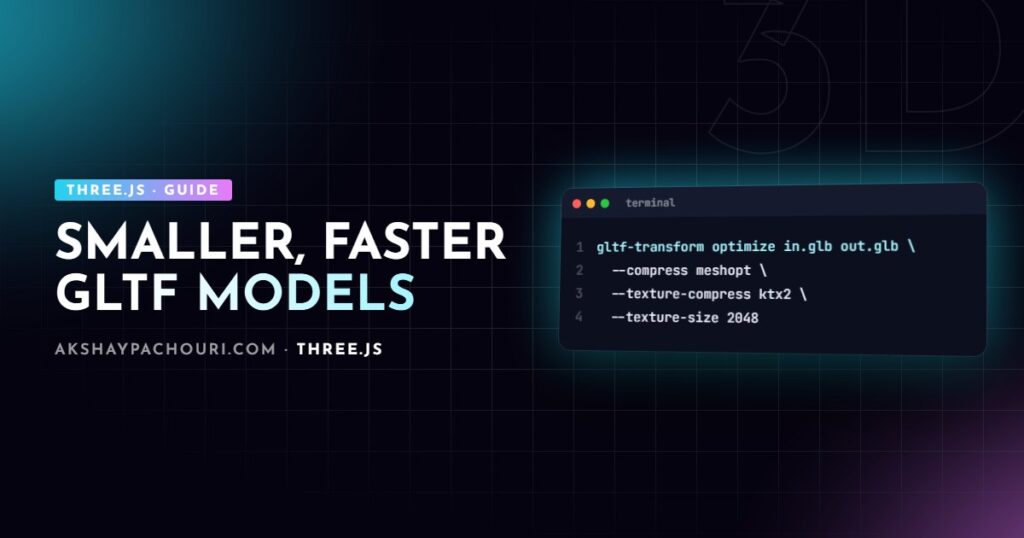
The optimize command chains the common steps (dedup, instancing, flattening, joining, welding, simplification, pruning, resampling animations, texture resizing and compression) with sensible defaults.
gltf-transform optimize model.glb model-opt.glb
  --compress draco
  --texture-compress webp
  --texture-size 2048
The key flags:
--compress– geometry compression:draco,meshopt,quantizeorfalse.--texture-compress–ktx2,webp,aviforfalse.--texture-size– maximum texture dimension; larger textures are downscaled.--simplify– mesh simplification is on by default in recent versions; pass--simplify falseif your model has hard edges or UV seams you must preserve, then check visually.
Defaults change between releases, so run gltf-transform optimize --help for the version you have installed. For most product models, optimize alone gets you the majority of the win.
Running steps individually for more control
When optimize is too aggressive, or you want to see which step does what, run commands one by one. Each command reads a file and writes a new one.
# 1. remove duplicate accessors, meshes, materials and textures
gltf-transform dedup model.glb step1.glb

# 2. drop unused nodes, materials, textures and attributes
gltf-transform prune step1.glb step2.glb

# 3. merge identical vertices so compression works better
gltf-transform weld step2.glb step3.glb

# 4. downscale textures (keeps aspect ratio, never upscales)
gltf-transform resize step3.glb step4.glb --width 2048 --height 2048

# 5. compress geometry
gltf-transform draco step4.glb step5.glb

# 6. compress textures
gltf-transform webp step5.glb final.glb
Order matters: clean and resize first, compress last. Compressing and then editing the file again means decoding and re-encoding, which wastes time and can lose quality.
Draco vs Meshopt for geometry
Both reduce geometry download size; they make different trade-offs.
| Draco | Meshopt | |
|---|---|---|
| glTF extension | KHR_draco_mesh_compression |
EXT_meshopt_compression |
| Strength | Very small static meshes | Fast decoding, works well with gzip/Brotli |
| Animation and morph targets | Geometry only | Also compresses animation and morph data |
| Decoder | WASM decoder files, loaded at runtime | Small JS module |
My default: Meshopt for animated or skinned characters and for scenes with many meshes, Draco for single dense static meshes where raw size matters most. Try both on your own file and compare transfer size after server compression, because Meshopt output is designed to be further compressed by gzip or Brotli.
gltf-transform meshopt step4.glb final-meshopt.glb
gltf-transform draco   step4.glb final-draco.glb
ls -lh final-*.glb
KTX2 vs WebP for textures
WebP (EXT_texture_webp) is simple: small downloads, supported natively by GLTFLoader and modern browsers, but it decodes to uncompressed RGBA on the GPU.
KTX2 with Basis Universal (KHR_texture_basisu) transcodes at load time into whatever GPU-compressed format the device supports. Textures stay compressed in GPU memory, which matters a lot on phones and in scenes with many large textures. There are two encodings:
etc1s– smaller files, lower quality; fine for base colour and occlusion/roughness/metalness maps.uastc– larger files, higher quality; better for normal maps where block artefacts show up as lighting errors.
# colour-ish maps with ETC1S, normal maps with UASTC
gltf-transform etc1s step4.glb tmp.glb --slots "{baseColorTexture,occlusionTexture,metallicRoughnessTexture,emissiveTexture}"
gltf-transform uastc tmp.glb final.glb --slots "normalTexture"
The KTX2 commands depend on KTX-Software (the toktx tool) being installed and on your PATH in many versions of the CLI; check the glTF Transform docs for your release. KTX2 textures should be power-of-two sized for best compatibility, so resize first.
Loader setup in Three.js: DRACOLoader, KTX2Loader and MeshoptDecoder
A compressed file needs the matching decoder registered on GLTFLoader, otherwise loading fails with an error about a missing extension or decoder. You can register all three; the loader only uses what the file needs.
import * as THREE from 'three';
import { GLTFLoader } from 'three/addons/loaders/GLTFLoader.js';
import { DRACOLoader } from 'three/addons/loaders/DRACOLoader.js';
import { KTX2Loader } from 'three/addons/loaders/KTX2Loader.js';
import { MeshoptDecoder } from 'three/addons/libs/meshopt_decoder.module.js';

const renderer = new THREE.WebGLRenderer({ antialias: true });

const draco = new DRACOLoader().setDecoderPath('/decoders/draco/');
const ktx2 = new KTX2Loader()
  .setTranscoderPath('/decoders/basis/')
  .detectSupport(renderer);           // must run before loading

const loader = new GLTFLoader()
  .setDRACOLoader(draco)
  .setKTX2Loader(ktx2)
  .setMeshoptDecoder(MeshoptDecoder);

const gltf = await loader.loadAsync('/models/final.glb');
scene.add(gltf.scene);
Copy the decoder files from node_modules/three/examples/jsm/libs/draco/ and node_modules/three/examples/jsm/libs/basis/ into your public folder so they are served from your own domain and match your Three.js version. Create the loaders once and reuse them; each new DRACOLoader or KTX2Loader spins up its own workers. Call draco.dispose() and ktx2.dispose() when you no longer need them.
In React Three Fiber, drei’s useGLTF enables Draco and Meshopt for you, and useKTX2 handles standalone KTX2 textures; see my React Three Fiber tutorial for the loading patterns.
Measuring after: what to compare
Run the same checks on the optimized file and compare like for like:
- Transfer size in the network panel with your production server compression enabled.
- Load-to-first-render time on a throttled connection and a mid-range phone, because decoding Draco and transcoding KTX2 cost CPU time.
- GPU memory and draw calls via
renderer.infoand, for deeper inspection, a WebGL debugger like Spector.js. - Visual diff – screenshot the same camera angle before and after. Quantization and simplification can shift edges, and ETC1S can band gradients.
gltf-transform inspect final.glb > report-after.txt
diff report-before.txt report-after.txt
If a model still loads slowly, the issue may be draw calls rather than bytes; my Three.js performance optimization guide covers merging and instancing. If the optimized model appears black or invisible, the checklist in fixing a Three.js model not showing usually finds a missing decoder or environment map.
Key takeaways
- Measure first with
gltf-transform inspect, the network panel andrenderer.info; never assume where the weight is. gltf-transform optimizewith--compress,--texture-compressand--texture-sizecovers most models in one step.- Use Meshopt for animated or multi-mesh scenes, Draco for dense static meshes, and compare both on your file.
- WebP reduces downloads; KTX2 also reduces GPU memory. Use UASTC for normal maps, ETC1S for the rest.
- Register
DRACOLoader,KTX2Loader(withdetectSupport) andMeshoptDecoderonce, and self-host the decoder files.
Frequently asked questions
Should I use Draco or Meshopt for Three.js?
Meshopt decodes faster and also compresses animations and morph targets, so it suits characters and multi-mesh scenes. Draco often produces smaller files for single dense static meshes; test both on your own model.
Does WebP reduce GPU memory in Three.js?
No, WebP textures are decoded to uncompressed RGBA before upload, so GPU memory is the same as a PNG of the same resolution. Use KTX2 with Basis Universal if GPU memory is the constraint.
Why does my compressed glTF fail to load?
Usually the matching decoder is not registered on GLTFLoader, the decoder path is wrong, or KTX2Loader.detectSupport was not called with your renderer. Check the console for the extension name it reports.
Can I optimize glTF files without the command line?
Yes, glTF Transform also has a JavaScript API you can run in Node build scripts, and there are browser-based tools built on it. The CLI is simply the quickest way to experiment.
Got a heavy 3D model that needs to load fast on phones without looking worse? Send me the file and your goals and I will tell you what is realistic.