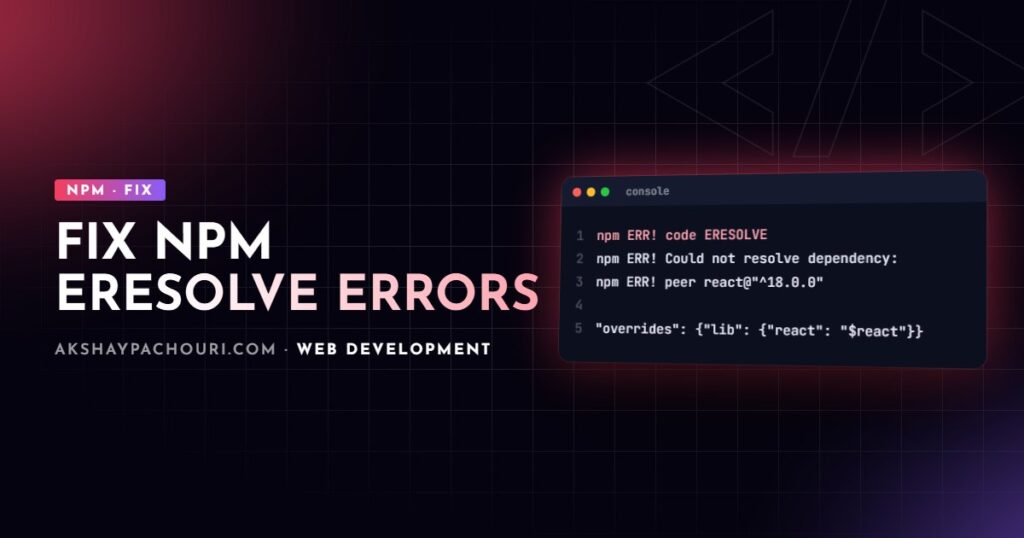
The npm ERESOLVE error stops an install with npm ERR! ERESOLVE unable to resolve dependency tree (newer npm versions print npm error ERESOLVE instead), usually followed by Could not resolve dependency and Conflicting peer dependency. It means two packages in your project require incompatible versions of a shared peer, often React, TypeScript or ESLint. This guide explains how to read the message, which flags are safe, and how to fix the conflict properly.
Quick fix
The most common cause is a library whose peerDependencies range has not been updated for a new major version of something you upgraded, such as React 19 or ESLint 9.
- Read the
Could not resolve dependencyline to find which package declares the incompatible peer. - Check whether a newer version of that package supports your version:
npm view <package> peerDependencies. - If one exists, upgrade it. If not, add a targeted
overridesentry, test the feature that uses it, and only fall back to--legacy-peer-depsif you understand the trade-off.
# See what the latest version of the conflicting package expects
npm view some-react-lib peerDependencies

# Upgrade it if the new range includes your React version
npm install some-react-lib@latest
How to read an ERESOLVE error
A typical message looks like this (package names are illustrative):
npm ERR! code ERESOLVE
npm ERR! ERESOLVE unable to resolve dependency tree
npm ERR!
npm ERR! While resolving: [email protected]
npm ERR! Found: [email protected]
npm ERR! node_modules/react
npm ERR!   react@"^19.1.0" from the root project
npm ERR!
npm ERR! Could not resolve dependency:
npm ERR! peer react@"^16.8.0 || ^17.0.0 || ^18.0.0" from [email protected]
npm ERR! node_modules/some-react-lib
npm ERR!   some-react-lib@"^2.3.0" from the root project
Read it in three parts:
- Found: what is already in the tree and who asked for it. Here, your project requires React 19.
- Could not resolve dependency: the package with the incompatible requirement.
[email protected]declares it only supports React 16 to 18. - The chain below each entry shows how the package got there, which matters when the culprit is a transitive dependency several levels down.
To explore further, npm explain react (alias npm why) lists every path that requires a package, and npm ls react shows installed versions in the current tree.
Why peer dependencies cause ERESOLVE
A peer dependency says “I do not bundle this package; I expect the host project to provide a compatible version”. Plugins and UI libraries use them so there is only one copy of React or ESLint in the app.
Since npm 7, npm installs peer dependencies automatically and treats incompatible ranges as errors. npm 6 and earlier ignored peer conflicts with a warning. That is why old projects often break the first time someone runs npm install with a modern npm, even though nothing in package.json changed.
The library’s peer range is a claim by its author about what they tested, not proof of incompatibility. Many libraries work fine on a new React major before their range is widened, and some genuinely break. That is the judgement call behind every fix below.
Causes, from most to least common
1. A library lagging behind a major upgrade
You upgraded React, Next.js, ESLint, TypeScript or Angular, and one dependency still declares the old range. Upgrading that dependency is the cleanest fix. If the project is unmaintained, look for a maintained fork or replacement.
2. Two packages needing different majors of the same peer
For example, one ESLint plugin requires ESLint 8 and another requires ESLint 9. No version satisfies both. You need to upgrade or drop one of them.
3. A stale or hand-edited lockfile
A package-lock.json generated by an older npm, or one with merge-conflict leftovers, can describe a tree that the current resolver rejects. Regenerating it often clears confusing errors (see lockfile hygiene below).
4. A pre-release or canary version in the tree (the one people miss)
Semver ranges like ^19.0.0 do not match pre-release versions such as 19.0.0-rc-abc123. If any package pulls in an RC or canary build of React, every library with a normal ^19 peer range will fail to resolve, and the error message looks like a version mismatch even though the major numbers agree. Check the Found: line for a pre-release suffix.
–legacy-peer-deps vs –force: the trade-offs
Both flags make the install succeed, but they do different things:
| Flag | What it does | Risk |
|---|---|---|
--legacy-peer-deps |
Ignores peer dependencies entirely, like npm 6. Peers are not auto-installed or checked. | Incompatible combinations install silently; missing peers you relied on auto-install for may disappear. |
--force |
Keeps resolving but overrides conflicts, accepting broken peer requirements and fetching packages even if present. | Can produce duplicate or mismatched versions; less predictable. |
If you must use one, I prefer --legacy-peer-deps because its behaviour is predictable. But note the flag only applies to that one command. Teammates and CI running plain npm install or npm ci will hit the error again, so if you rely on it, commit it to the project’s .npmrc and document why:
# .npmrc (project root, committed)
legacy-peer-deps=true
Treat that as technical debt with a reason attached, not a permanent setting. It disables a safety check for every package, not just the one that caused the problem.
Using overrides in package.json for a targeted fix
overrides (npm 8.3 and later) lets you replace a version anywhere in the tree, scoped to a specific package if you want. This is much narrower than a global flag:
{
  "dependencies": {
    "react": "^19.1.0",
    "react-dom": "^19.1.0",
    "some-react-lib": "^2.3.0"
  },
  "overrides": {
    "some-react-lib": {
      "react": "$react",
      "react-dom": "$react-dom"
    }
  }
}
The $react syntax means “use the version spec from my own dependencies”, which keeps the override in sync when you upgrade. It only works for packages listed as direct dependencies. After editing overrides, delete the lockfile entries for the affected packages (or the whole lockfile and node_modules) and reinstall so npm applies them, then test the feature that uses the overridden library.
Step-by-step diagnosis
- Run
npm installand copy the full error, including the “Found” and “Could not resolve” blocks. - Run
npm explain <peer>to see every package that requires it. - Run
npm view <culprit> versionsandnpm view <culprit>@latest peerDependenciesto see if a compatible release exists. - Check the library’s GitHub issues for the new major version; maintainers often confirm compatibility there before updating the range.
- Apply the narrowest fix: upgrade, then override, then a project-level flag.
- Regenerate the lockfile if the error persists after the fix.
npm explain react
npm view some-react-lib@latest peerDependencies

# Clean reinstall (macOS/Linux/Git Bash)
rm -rf node_modules package-lock.json
npm install
Lockfile hygiene and pnpm/yarn differences
Commit your lockfile, use npm ci in CI, and avoid hand-resolving lockfile merge conflicts; instead, resolve package.json and rerun npm install. Keep npm itself reasonably current, since resolver behaviour has improved across releases.
Other package managers handle peers differently, so check their docs for your version:
- pnpm auto-installs peers and, by default in recent versions, reports peer mismatches as warnings rather than failing. It uses
pnpm.overrides(or theoverridessetting inpnpm-workspace.yamlin newer versions) andpeerDependencyRulesto allow specific ranges. - Yarn uses
resolutionsinpackage.jsonfor overrides. Yarn Berry warns about unmet peers rather than failing the install.
Switching package managers hides the incompatibility rather than removing it. PHP developers will recognise the same pattern from Composer dependency conflicts.
Prevention
- Upgrade one major dependency at a time and run install and tests after each.
- Before a big upgrade, check peer ranges of your plugins with
npm view. - Prefer actively maintained libraries with frequent releases.
- Document every override and
.npmrcflag with the reason and a link to the upstream issue.
Key takeaways
- The npm ERESOLVE error means a package’s peer range does not include the version in your tree.
- Read “Found” and “Could not resolve dependency” to identify both sides of the conflict.
- Upgrading the conflicting package is the best fix;
overridesis the best targeted workaround. --legacy-peer-depsignores all peers and--forceoverrides conflicts; both hide real incompatibilities.- Watch for pre-release versions, which do not satisfy normal semver ranges.
Frequently asked questions
Is it safe to use –legacy-peer-deps?
It is safe only when you have checked that the libraries actually work together. It disables peer checks for every package, so it can hide genuine incompatibilities.
What is the difference between –force and –legacy-peer-deps?
--legacy-peer-deps ignores peer dependencies entirely as npm 6 did, while --force still resolves peers but overrides conflicts and can produce mismatched versions.
Why did npm install suddenly fail on an old project?
npm 7 and later install and enforce peer dependencies, which npm 6 did not. An old project with peer conflicts that npm 6 tolerated will fail on a modern npm.
How do I override a nested dependency version in npm?
Add an overrides field to package.json, optionally scoped to the parent package, then reinstall. Yarn uses resolutions and pnpm uses its own overrides setting for the same purpose.
If a dependency upgrade has turned into a tangle of peer conflicts, contact me and I can help untangle it safely.