“WooCommerce cart not updating” covers a family of symptoms: the mini-cart in the header still says 0 items after adding a product, the cart page shows stale totals, clicking Update cart does nothing, items vanish between pages, or the block cart shows Nonce verification failed or a generic There was an error message. In nearly every case WooCommerce itself works fine. Something between the visitor and PHP, usually a cache, is serving a copy of the cart that belongs to nobody.
Quick fix
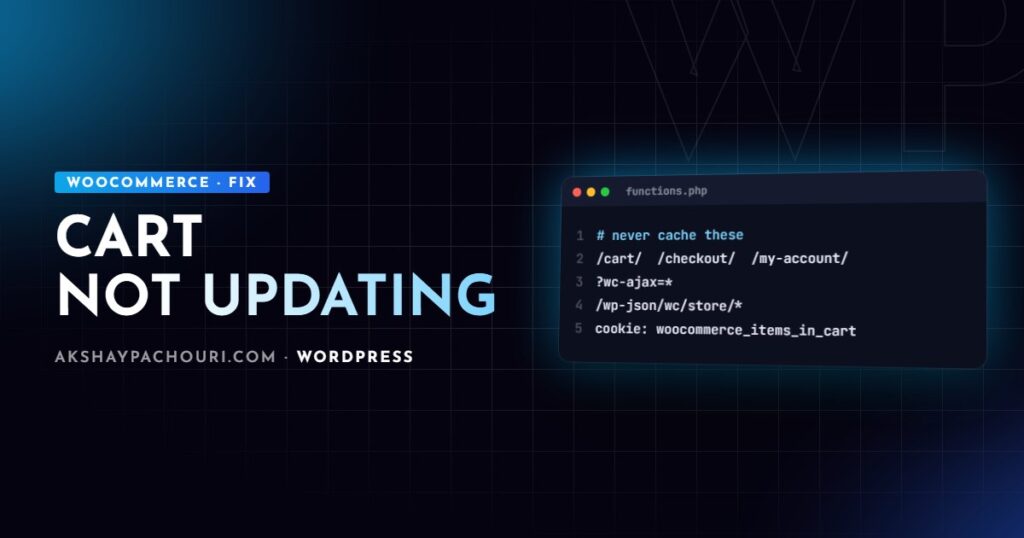
- Exclude the cart, checkout and my-account pages from every cache layer: caching plugin, server cache and CDN.
- Bypass the page cache for any visitor who has these cookies:
woocommerce_items_in_cart,woocommerce_cart_hashandwp_woocommerce_session_*. - Never cache
?wc-ajax=requests or/wp-json/wc/store/(Store API) responses. - Purge all caches, then test in a private window: add to cart, open the cart, change quantity, go to checkout.
If that fixes it, you are done. If not, work through the causes below.
Causes, from most to least common
1. Page caching of cart and checkout
Cart pages are unique per visitor. If a cache stores the cart page once and serves it to everyone, every visitor sees the first visitor’s cart (often an empty one). Most WordPress caching plugins exclude WooCommerce pages automatically, but only if the pages are set correctly under WooCommerce → Settings → Advanced. Server-level caches such as Varnish, Nginx FastCGI cache or host-provided caching need their own rules.
For Nginx FastCGI cache, skip the cache on WooCommerce URLs and cookies:
set $skip_cache 0;

if ($request_uri ~* "/(cart|checkout|my-account)/|wc-ajax=|/wp-json/wc/store/") {
    set $skip_cache 1;
}
if ($http_cookie ~* "woocommerce_items_in_cart|woocommerce_cart_hash|wp_woocommerce_session_|wordpress_logged_in_") {
    set $skip_cache 1;
}

fastcgi_cache_bypass $skip_cache;
fastcgi_no_cache $skip_cache;
Adjust the paths if your cart and checkout use translated or custom slugs.
2. CDN rules that ignore cookies
A Cloudflare “Cache Everything” rule (or the equivalent on other CDNs) caches HTML at the edge regardless of cookies, unless you add exceptions. Worse, some setups strip Set-Cookie from cached responses, so WooCommerce never manages to give the visitor a session cookie, and the cart empties on every page load. Add a bypass rule that matches the cart paths, wc-ajax, the Store API and the WooCommerce cookies. My Cloudflare cache rules guide walks through building those expressions.
3. Cart fragments not refreshing the mini-cart
Classic themes update the header cart count through “cart fragments”: the wc-cart-fragments script calls ?wc-ajax=get_refreshed_fragments and swaps in fresh HTML. In recent WooCommerce versions this script is no longer loaded on every page by default; it is enqueued where the classic mini-cart widget is used. If your theme renders its own cart count without that widget, the count goes stale. Also, if you output a custom cart count, you must register it as a fragment:
<?php
add_filter( 'woocommerce_add_to_cart_fragments', function ( $fragments ) {
    ob_start();
    ?>
    <span class="acme-cart-count"><?php echo esc_html( WC()->cart->get_cart_contents_count() ); ?></span>
    <?php
    $fragments['span.acme-cart-count'] = ob_get_clean();
    return $fragments;
} );

// Only if your theme's mini-cart depends on fragments and the script is not loaded.
add_action( 'wp_enqueue_scripts', function () {
    if ( function_exists( 'is_woocommerce' ) ) {
        wp_enqueue_script( 'wc-cart-fragments' );
    }
} );
The selector key must match the element in your header exactly. Loading fragments on every page has a performance cost, because it is an uncached AJAX request per page view, so do it only where you need it.
4. JavaScript optimisation breaking AJAX
Plugins and CDN features that defer, delay, combine or minify JavaScript can stop wc-cart-fragments, wc-add-to-cart or wc-cart from running in the right order. The tell is a console error such as jQuery is not defined or wc_cart_fragments_params is not defined. Exclude WooCommerce scripts and jQuery from “delay JS” features, and test with optimisation off.
5. Nonce expiry on cached pages (the one people miss)
The block cart and checkout talk to the Store API, which requires a nonce. WordPress nonces are valid for a limited window (up to a day by default). If a page containing the cart or a product’s add-to-cart data is cached longer than that, the embedded nonce goes stale and requests start failing with a 403 and a nonce error, but only some hours after the cache was primed, which makes it look random. The fix is not to raise the nonce lifetime; it is to stop caching those pages, or keep HTML cache lifetimes for pages with nonces well under the nonce window. Note that nonces for logged-out visitors are tied to the WooCommerce session, which is another reason cached cart HTML breaks.
6. Outdated theme template overrides
Themes that override cart/cart.php, cart/mini-cart.php or checkout/form-checkout.php can fall behind WooCommerce updates. Missing hooks, removed nonces or changed form field names will break the update button or totals. Check WooCommerce → Status → System Status → Templates; outdated overrides are flagged there. Temporarily switch to a default theme like Storefront or Twenty Twenty-Five on staging to confirm.
7. Block cart vs classic cart code
Custom code written for the classic cart often does nothing on the Cart block. jQuery events such as updated_cart_totals and wc_fragment_refresh do not fire there, and output hooks like woocommerce_cart_totals_before_order_total are not rendered. Server-side calculation hooks like woocommerce_before_calculate_totals still run, but the block cart only reflects changes made through the Store API. If you changed prices or fees in a way that the Store API does not see, the block cart shows old totals until reload.
Step-by-step diagnosis
- Check response headers on the cart page.
curl -sI https://example.com/cart/ | grep -iE "cache|age|x-cache|cf-cache-status|set-cookie"A
HIT, anageheader greater than zero, orcf-cache-status: HITon the cart means it is being cached. - Watch the cookies. In DevTools, Application → Cookies: after adding to cart you should see
woocommerce_items_in_cartand awp_woocommerce_session_cookie. If they never appear, something is strippingSet-Cookie. - Watch the network tab. Look for
wc-ajax=get_refreshed_fragments(classic) or/wp-json/wc/store/v1/cart(blocks). A 403 points to nonces or a firewall; a cached response points to the CDN. - Read the console for JavaScript errors from optimisation plugins.
- Isolate. On staging, disable caching and optimisation plugins and switch to a default theme. Re-enable one at a time.
- Check scheduled clean-up. WooCommerce clears expired sessions using scheduled tasks. If WP-Cron is broken, session tables grow, though this causes slowness more than lost carts. See fixing WP-Cron not running.
Prevention
- Document your cache exclusions (paths, cookies, query strings) and apply them at every layer, including the CDN.
- Test add-to-cart, quantity changes and checkout in a private window after every plugin, theme or CDN change.
- Keep template overrides to a minimum and review them after each WooCommerce update.
- Keep HTML cache lifetimes shorter than the nonce lifetime on pages that embed WooCommerce nonces.
- Decide on block or classic cart and write custom code for that one, or support both deliberately.
Key takeaways
- Most cart problems are caching problems: exclude cart, checkout, my-account,
wc-ajaxand the Store API. - Bypass caches when WooCommerce cookies are present, and make sure CDNs do not strip
Set-Cookie. - Custom header cart counts need a
woocommerce_add_to_cart_fragmentsfilter on classic themes. - Stale nonces in cached HTML cause delayed, seemingly random 403s on the block cart.
- Classic cart jQuery events and output hooks do not apply to the Cart block.
Frequently asked questions
Why does my WooCommerce mini-cart not update until I refresh the page?
On classic themes the mini-cart relies on cart fragments, and the fragments script may not be loaded or your custom cart markup is not registered as a fragment. Enqueue wc-cart-fragments where needed and add your element through the woocommerce_add_to_cart_fragments filter.
Why do items disappear from the WooCommerce cart?
The visitor is not keeping a WooCommerce session, usually because a CDN or cache strips the session cookie or serves a cached page without it. Exclude WooCommerce cookies and pages from caching and confirm the session cookie appears after adding to cart.
Can I cache the WooCommerce cart page?
No. The cart, checkout and account pages are unique to each visitor and must always be generated by PHP. You can safely cache product and category pages for visitors with no cart cookies.
Why does the block cart show a nonce error?
The page was served from a cache holding an expired Store API nonce, or a firewall is blocking the request. Stop caching pages that contain the block cart and check the response in the network tab.
If your store is losing sales to a cart that will not update, contact me and I can trace the cache or code issue for you.