Freelancing well isn’t only about writing good code. It’s about shipping it safely to several clients at once, never losing work, knowing where your hours went and getting paid on time. A solid freelance developer workflow turns all of that into routine. This guide covers the setup I recommend, from Git branching and staging environments to deploy pipelines, backups, credentials, time tracking, invoicing and handover.
None of these tools is exotic. The value comes from using the same process on every project, so nothing depends on remembering what you did for that one client last spring.
Git branching for client work
Every client project lives in Git, ideally in a repository the client owns (in their GitHub organisation, with you as a collaborator) or one you transfer at handover. That avoids awkward conversations about who owns the code later.
For most client projects I use a deliberately simple model:
main: always matches production. Protected; changes only arrive via pull request.staging: what’s deployed to the staging site for client review.feature/*andfix/*: short-lived branches for individual tasks, merged intostagingfirst.
# Start a task from the latest production code
git switch main && git pull
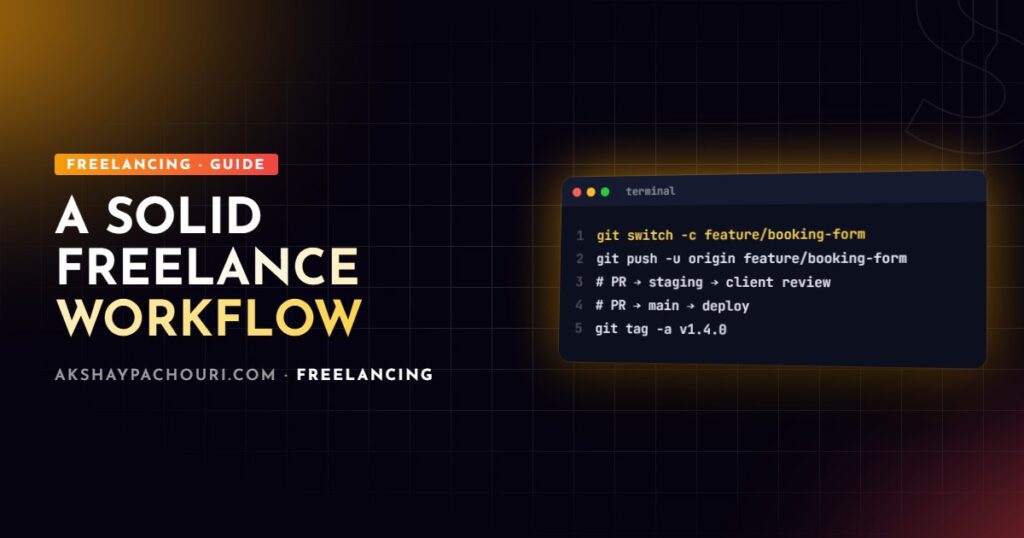
git switch -c feature/booking-form

# …work, commit…
git push -u origin feature/booking-form
# Open a PR into staging; after client approval, PR staging into main

# Tag each production release so rollbacks are easy
git switch main && git pull
git tag -a v1.4.0 -m "Booking form and header redesign"
git push origin v1.4.0
Write commit messages a future developer can understand, and reference the task or ticket ID. Tags give you a clear history of what went live and when, which is invaluable when a client asks “what changed last Tuesday?”.
Staging environments
A staging site is where clients review work before it goes live, and where you catch problems that don’t appear locally: server configuration, caching, real data. Every client project should have one.
- Use a subdomain such as
staging.clientsite.com, password-protected and set tonoindex. - Match production’s PHP or Node version, web server and caching layer as closely as practical.
- Use separate API keys and payment gateways in test mode.
- Stop staging from emailing real customers by routing mail to a catch-all inbox or disabling it.
For WordPress, I mark the environment so plugins and code can behave differently:
<?php
// wp-config.php on the staging server
define( 'WP_ENVIRONMENT_TYPE', 'staging' );
define( 'DISALLOW_FILE_EDIT', true );

// In a mu-plugin: never send real emails from non-production environments
if ( 'production' !== wp_get_environment_type() ) {
    add_filter( 'pre_wp_mail', '__return_false' );
}
Deploy pipelines with GitHub Actions
Manual FTP uploads are where accidents happen: a forgotten file, an overwritten config, a deploy you can’t reproduce. A pipeline makes deploys boring and repeatable. This workflow builds the project and deploys to staging or production depending on the branch:
# .github/workflows/deploy.yml
name: Deploy

on:
  push:
    branches: [main, staging]

jobs:
  deploy:
    runs-on: ubuntu-latest
    environment: ${{ github.ref_name == 'main' && 'production' || 'staging' }}
    steps:
      - uses: actions/checkout@v4

      - uses: actions/setup-node@v4
        with:
          node-version: lts/*
          cache: npm

      - run: npm ci
      - run: npm run build

      - name: Deploy over SSH
        env:
          SSH_KEY: ${{ secrets.DEPLOY_SSH_KEY }}
          DEPLOY_HOST: ${{ vars.DEPLOY_HOST }}
          DEPLOY_PATH: ${{ vars.DEPLOY_PATH }}
        run: |
          mkdir -p ~/.ssh
          echo "$SSH_KEY" > ~/.ssh/deploy_key
          chmod 600 ~/.ssh/deploy_key
          ssh-keyscan -H "$DEPLOY_HOST" >> ~/.ssh/known_hosts
          rsync -az --delete --exclude ".env"
            -e "ssh -i ~/.ssh/deploy_key"
            dist/ "deploy@$DEPLOY_HOST:$DEPLOY_PATH"
GitHub Environments let you store different variables and secrets for staging and production, and add a required reviewer on production so nothing goes live without approval. Check the current major versions of the actions you use. For WordPress themes and plugins, deploy only your custom code, never the whole wp-content including uploads. Platforms like Vercel or Netlify replace this file entirely for front-end projects, with preview deploys per branch.
Backups you have actually tested
Hosting providers’ backups are a good start, but you should also have your own copy stored somewhere else. Before any significant deployment or plugin update, take a fresh backup. A simple nightly script for a WordPress site:
#!/usr/bin/env bash
# /home/deploy/bin/backup-site.sh — run nightly from cron
set -euo pipefail

SITE_DIR="/var/www/clientsite"
BACKUP_DIR="/home/deploy/backups"
STAMP=$(date +%F)

mkdir -p "$BACKUP_DIR"

# Database (uses wp-config.php credentials)
wp --path="$SITE_DIR" db export - | gzip > "$BACKUP_DIR/db-$STAMP.sql.gz"

# Uploads and custom code
tar -czf "$BACKUP_DIR/files-$STAMP.tar.gz" -C "$SITE_DIR" wp-content

# Copy off-server (rclone remote configured separately)
rclone copy "$BACKUP_DIR" "offsite:clientsite-backups"

# Keep 14 days locally
find "$BACKUP_DIR" -type f -mtime +14 -delete
# crontab -e
30 2 * * * /home/deploy/bin/backup-site.sh >> /home/deploy/logs/backup.log 2>&1A backup you’ve never restored is a hope, not a backup. Periodically restore one to a local or staging environment to prove it works. Ongoing backups and updates are also a natural basis for a paid website maintenance retainer.
Password managers and access hygiene
Freelancers hold keys to a lot of businesses: hosting, DNS, domain registrars, payment gateways, admin accounts. Treat that responsibility seriously.
- Use a password manager such as 1Password or Bitwarden, with a separate vault per client.
- Never send credentials over email or chat. Use the password manager’s sharing feature, or a one-time secret link.
- Ask for your own named accounts rather than the client’s main login, so access can be revoked cleanly.
- Use SSH keys rather than passwords for servers, ideally a separate key per client.
- Turn on two-factor authentication everywhere, and make sure the client, not you, owns recovery for their accounts.
- Keep secrets out of Git: use
.envfiles that are ignored, and CI secrets for pipelines.
# .gitignore essentials
.env
.env.*
!.env.example
node_modules/
vendor/
wp-content/uploads/
Time tracking
Even on fixed-price projects, track your time. It tells you whether your estimates are realistic and which kinds of projects are actually profitable, and it backs up change requests with evidence.
- Tools like Toggl Track, Clockify or Harvest work well; pick one with a desktop timer and reports per client and project.
- Track by project and task type (development, meetings, revisions, support).
- Review weekly: where did unbillable time go?
Comparing tracked hours against your estimates over a few projects is the best input for pricing future projects accurately.
Invoicing and payments
Use proper invoicing software rather than editing a Word document each month. Most options (FreshBooks, Zoho Invoice, Wave, Stripe Invoicing and others) handle numbering, tax fields, payment links, recurring invoices and automatic reminders. If you work with international clients, check how each handles currency, payment fees and the tax requirements in your country.
- Take a deposit before starting and invoice at milestones, not only at the end.
- Put payment terms and late fees on every invoice.
- Set up recurring invoices for retainers and hosting.
- Turn on automatic reminders so chasing payment isn’t personal.
Project boards and client communication
A shared board gives clients visibility and stops requests arriving scattered across email, WhatsApp and calls. Trello, Linear, GitHub Projects or Notion all work; what matters is one place for tasks.
- Columns such as Backlog, In progress, In review (on staging), Done.
- Every client request becomes a card, with scope and estimate. Anything new beyond the agreed scope is labelled as a change request.
- Link cards to branches or pull requests so code and conversation stay connected.
- Send a short weekly summary: done, in progress, blocked, waiting on the client.
A clear board is also the simplest defence against scope creep, which I cover in how to handle scope creep.
Documentation and handover
Write documentation as you go, not in a panic on the last day. At handover, the client (or their next developer) should be able to run, deploy and maintain the project without you. A good README covers:
- Local setup steps and required versions.
- Environment variables, with an
.env.examplefile. - How deploys work and how to roll back.
- Where hosting, DNS, domain, email and third-party accounts live, and who owns them.
- Renewal dates for domains, SSL (if not automatic) and licences.
- Known limitations and suggested next steps.
# .env.example — commit this, never the real .env
APP_URL=https://staging.clientsite.com
DATABASE_URL=mysql://user:password@localhost:3306/clientsite
STRIPE_SECRET_KEY=sk_test_xxx
[email protected]
Finish with a handover call, transfer repository and account ownership, then revoke your own access unless you’re staying on for maintenance.
Key takeaways
- Keep every project in Git with a simple branch model:
mainfor production,stagingfor review, short-lived feature branches. - Give every client a protected, noindexed staging site that mirrors production.
- Automate deploys with GitHub Actions or a platform pipeline; no more manual FTP.
- Run off-server backups and test restores regularly.
- Store credentials in a password manager with per-client vaults, never in email or Git.
- Track time, invoice through proper software, run tasks on a shared board and document as you go.
Frequently asked questions
Should the Git repository belong to me or the client?
Ideally the client owns the repository, either from the start in their organisation or transferred at handover once paid. It makes ownership clear and lets them bring in other developers later.
Do small client websites really need a staging environment?
Yes, even small sites benefit, because staging lets clients review changes and lets you test updates without risking the live site. Many hosts offer one-click staging for WordPress, which keeps the cost low.
What is the best time tracking tool for freelance developers?
The best one is the one you’ll use consistently; Toggl Track, Clockify and Harvest all cover per-client and per-project reporting. Choose based on how well it integrates with your invoicing tool and project board.
How should I share passwords with clients securely?
Use a password manager’s sharing feature or a one-time secret link, and never send credentials by email or chat. Ask clients to create named accounts for you so access can be removed cleanly later.
If you’re looking for a developer who brings this kind of structured, low-risk workflow to your project, get in touch and let’s talk about what you need.