Clicking a 3D object sounds simple until the hit lands on the wrong mesh, ignores the canvas position on the page, or drops your frame rate on a large model. This guide covers the Three.js raycaster click workflow end to end: correct pointer coordinates, hover and click handling, layers, fast raycasting with three-mesh-bvh, instanced meshes and the React Three Fiber equivalent.
How raycasting works in Three.js
A THREE.Raycaster shoots an invisible ray from the camera through a point on the screen and returns every object it crosses, sorted by distance. For meshes, Three.js first tests the object’s bounding sphere and then every triangle, returning an array of intersections. Each intersection contains:
object– the mesh that was hit (often a child of the model you added).point– the hit position in world space.distance– distance from the camera.faceandfaceIndex– the triangle hit, including its normal.uv– texture coordinates at the hit point, useful for painting or decals.instanceId– forInstancedMesh, which instance was hit.
Normalized pointer coordinates with the canvas offset
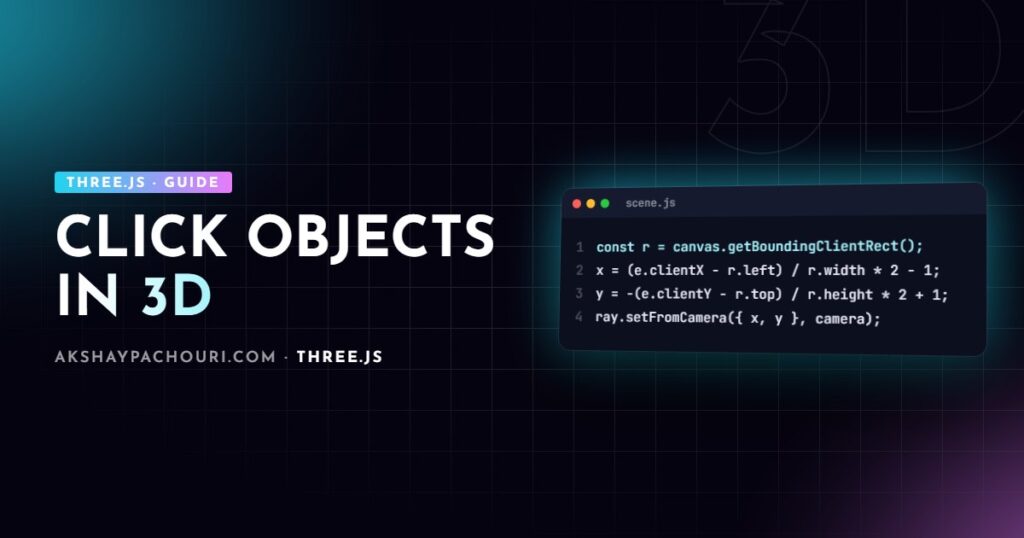
The raycaster expects normalized device coordinates (NDC): x and y from -1 to 1, with y pointing up. The classic tutorial formula divides clientX by window.innerWidth, which only works when the canvas fills the whole window. In real layouts the canvas sits inside a page with headers and sidebars, so subtract its position and divide by its own size:
import * as THREE from 'three';

const raycaster = new THREE.Raycaster();
const pointer = new THREE.Vector2();

function updatePointer(event) {
  const rect = renderer.domElement.getBoundingClientRect();
  pointer.x = ((event.clientX - rect.left) / rect.width) * 2 - 1;
  pointer.y = -((event.clientY - rect.top) / rect.height) * 2 + 1;
}
Use getBoundingClientRect() rather than offsetLeft; it accounts for scrolling, CSS transforms and nested positioning. Because you divide by the CSS size of the canvas, device pixel ratio does not affect the result.
Click detection that ignores drags
With OrbitControls, every camera drag ends in a click event, so users accidentally select objects while rotating. Track the pointer-down position and only treat it as a click if the pointer barely moved:
const clickable = [];          // meshes you want to be selectable
const down = new THREE.Vector2();

renderer.domElement.addEventListener('pointerdown', (e) => {
  down.set(e.clientX, e.clientY);
});

renderer.domElement.addEventListener('pointerup', (e) => {
  if (down.distanceTo(new THREE.Vector2(e.clientX, e.clientY)) > 5) return; // a drag

  updatePointer(e);
  raycaster.setFromCamera(pointer, camera);
  const hits = raycaster.intersectObjects(clickable, true);

  if (hits.length > 0) {
    onSelect(hits[0].object, hits[0].point);
  }
});
Pass an explicit list of selectable objects rather than scene.children. Testing the whole scene includes helpers, floors and invisible colliders you did not mean to hit, and it is slower. The second argument, true, makes the test recursive so children of loaded glTF models are included.
For glTF models, the hit object is usually a nested child mesh. To find the logical product part, walk up the parents until you find the node you tagged:
function findSelectable(obj) {
  while (obj && !obj.userData.selectable) obj = obj.parent;
  return obj;
}
Hover effects without wasting frames
Hover needs a raycast on pointer move, but pointermove can fire far more often than the screen refreshes. Store the pointer on move and raycast once per frame in your render loop instead:
let needsRaycast = false;
let hovered = null;

renderer.domElement.addEventListener('pointermove', (e) => {
  updatePointer(e);
  needsRaycast = true;
});

renderer.setAnimationLoop(() => {
  if (needsRaycast) {
    needsRaycast = false;
    raycaster.setFromCamera(pointer, camera);
    const hit = raycaster.intersectObjects(clickable, true)[0];
    const next = hit ? findSelectable(hit.object) : null;

    if (next !== hovered) {
      hovered = next;
      renderer.domElement.style.cursor = hovered ? 'pointer' : 'default';
    }
  }
  renderer.render(scene, camera);
});
If you highlight by changing material.color, remember that glTF meshes often share one material; changing it highlights every mesh that uses it. Clone the material on the selectable part first, or use an outline post-processing pass.
Filtering hits with layers
Three.js layers are a cheap way to control what the raycaster can see without maintaining separate arrays. An object is tested only if it shares at least one enabled layer with the raycaster.
const PICKABLE = 1;

productParts.forEach((m) => m.layers.enable(PICKABLE)); // still visible on layer 0
raycaster.layers.set(PICKABLE);                          // only test layer 1

// cameras render layer 0 by default, so visibility is unchanged
Layers are also handy for invisible collision proxies: put a simplified box on the pickable layer, leave it off the camera’s layers so it never renders, and raycast against it instead of the detailed mesh.
Lines and points have their own thresholds, set through raycaster.params.Line.threshold and raycaster.params.Points.threshold, in world units. Increase them if thin lines are hard to hit.
Raycasting performance with three-mesh-bvh
Default raycasting tests triangles one by one. On a model with a high triangle count, a single hover raycast can take long enough to cost you frames. three-mesh-bvh builds a bounding volume hierarchy so the ray only tests triangles near its path.
import * as THREE from 'three';
import {
  computeBoundsTree,
  disposeBoundsTree,
  acceleratedRaycast,
} from 'three-mesh-bvh';

THREE.BufferGeometry.prototype.computeBoundsTree = computeBoundsTree;
THREE.BufferGeometry.prototype.disposeBoundsTree = disposeBoundsTree;
THREE.Mesh.prototype.raycast = acceleratedRaycast;

// after loading the model
gltf.scene.traverse((o) => {
  if (o.isMesh) o.geometry.computeBoundsTree();
});

raycaster.firstHitOnly = true;   // stop at the nearest hit
Building the BVH costs time up front, so do it once after loading, not per frame. If the geometry deforms (skinning or morph targets), the tree goes stale; the library documents refit options for that. firstHitOnly is a three-mesh-bvh addition that skips collecting every intersection when you only need the closest. For other ways to keep frame time down, see my Three.js performance optimization guide.
Raycasting InstancedMesh
InstancedMesh supports raycasting natively; the intersection includes instanceId, which you use to read or change that instance:
const hit = raycaster.intersectObject(instancedMesh)[0];

if (hit) {
  const id = hit.instanceId;
  instancedMesh.setColorAt(id, new THREE.Color('tomato'));
  instancedMesh.instanceColor.needsUpdate = true;

  const matrix = new THREE.Matrix4();
  instancedMesh.getMatrixAt(id, matrix);   // position/rotation/scale of that instance
}
Two common surprises: the mesh’s bounding sphere must cover every instance, so after moving instances call instancedMesh.computeBoundingSphere() or hits near the edges are missed; and setColorAt only works if instance colours were initialised, which happens on the first call. BatchedMesh reports a batchId in the same way in recent versions.
React Three Fiber pointer events
In React Three Fiber you rarely touch the raycaster directly. Meshes accept DOM-like handlers, and R3F handles canvas offsets, NDC conversion and hover state for you:
import { useState } from 'react';

function Part({ geometry, material, name }) {
  const [hovered, setHovered] = useState(false);

  return (
    <mesh
      geometry={geometry}
      material={material}
      onPointerOver={(e) => { e.stopPropagation(); setHovered(true); }}
      onPointerOut={() => setHovered(false)}
      onClick={(e) => {
        if (e.delta > 5) return;          // pixels moved since pointerdown
        e.stopPropagation();
        console.log('selected', name, e.point, e.instanceId);
      }}
      scale={hovered ? 1.05 : 1}
    />
  );
}
e.delta gives the drag distance so you can ignore orbit drags, and e.stopPropagation() prevents objects behind from also receiving the event. You can also set raycast={() => null} on a mesh to make it ignore pointer events entirely. More on R3F’s model in my React Three Fiber tutorial.
Common raycasting bugs
- Offset hits – NDC computed from window size instead of the canvas rect.
- Nothing hit after moving objects – raycasting uses world matrices; if you raycast before the first render, call
scene.updateMatrixWorld(). - Hits on the inside of a model only – the raycaster respects
material.side; back faces ofFrontSidematerials are ignored. - Hidden objects still hit – the raycaster tests objects regardless of
visible, so settingvisible = falsedoes not stop hits; filter by layers or your own list. - Hits on skinned or morphed meshes look wrong – check your Three.js version’s support for raycasting deformed geometry, and use simple proxies if precision is not needed.
Key takeaways
- Compute NDC from
getBoundingClientRect()of the canvas, not the window. - Raycast against an explicit list or a layer, not the whole scene, and walk up parents to find the logical object.
- Distinguish clicks from drags and throttle hover raycasts to once per frame.
- Use three-mesh-bvh with
firstHitOnlyfor dense models. InstancedMeshhits returninstanceId; in React Three Fiber, use pointer event props withstopPropagationande.delta.
Frequently asked questions
Why is my Three.js raycaster click offset from the mouse?
Your normalized coordinates are probably based on the window size while the canvas is smaller or offset on the page. Subtract the canvas getBoundingClientRect left and top and divide by its width and height instead.
How do I raycast only certain objects in Three.js?
Pass an array of the selectable meshes to intersectObjects, or enable a dedicated layer on those objects and call raycaster.layers.set with the same layer number. Layers avoid keeping a separate list in sync.
Why is raycasting slow on my model?
The default raycaster tests every triangle of every mesh it checks, which is expensive for dense geometry. Build a BVH with three-mesh-bvh, enable firstHitOnly and raycast once per frame rather than on every pointer event.
How do I know which instance of an InstancedMesh was clicked?
The intersection object includes an instanceId property with the index of the instance that was hit. Use it with getMatrixAt or setColorAt to read or change that instance.
Building an interactive 3D viewer or configurator where clicks need to feel precise? Get in touch and I can help you build or review it.