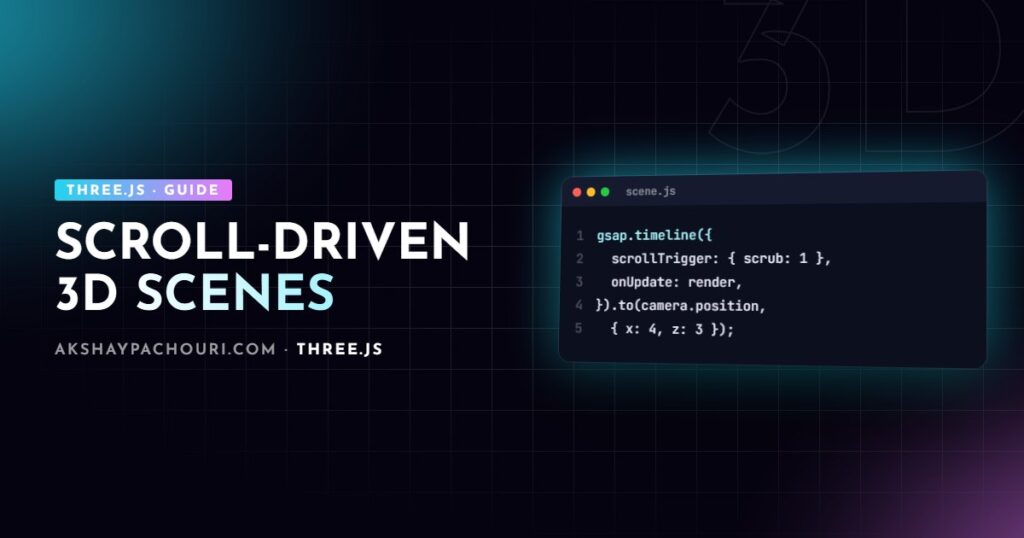
Scroll-driven 3D is everywhere on product and agency sites: the camera glides around a model as you read, parts explode apart, colours shift between sections. This guide shows how to build a Three.js scroll animation with GSAP ScrollTrigger, using timelines that control the camera and objects, scrub and pinning, render-on-demand, reduced-motion support and the mobile details that usually break.
The architecture: fixed canvas, scrolling content
The simplest robust layout is a canvas fixed behind the page and normal HTML sections scrolling over it. The page scroll drives a GSAP timeline; the timeline changes Three.js properties; the renderer draws the result. Three.js never listens to scroll directly.
<canvas id="webgl"></canvas>

<main id="story">
  <section class="step"><h2>Designed for daily use</h2></section>
  <section class="step"><h2>Every part replaceable</h2></section>
  <section class="step"><h2>Pick your finish</h2></section>
</main>
#webgl {
position: fixed;
inset: 0;
width: 100%;
height: 100%;
z-index: -1;
}
.step {
min-height: 100vh;
display: grid;
place-items: center;
}Keeping the canvas fixed avoids pinning and resizing the WebGL element, which is where many scroll setups get janky. If you prefer CSS-only stickiness for sections, my notes on position: sticky not working cover the usual traps.
Setting up Three.js and GSAP
npm install three gsapGSAP and its plugins, including ScrollTrigger, are free to use under GSAP’s standard licence; check the current terms on the GSAP site for your use case.
import * as THREE from 'three';
import { GLTFLoader } from 'three/addons/loaders/GLTFLoader.js';
import { gsap } from 'gsap';
import { ScrollTrigger } from 'gsap/ScrollTrigger';

gsap.registerPlugin(ScrollTrigger);

const canvas = document.querySelector('#webgl');
const renderer = new THREE.WebGLRenderer({ canvas, antialias: true, alpha: true });
renderer.setPixelRatio(Math.min(window.devicePixelRatio, 2));
renderer.setSize(window.innerWidth, window.innerHeight);

const scene = new THREE.Scene();
const camera = new THREE.PerspectiveCamera(40, innerWidth / innerHeight, 0.1, 100);
camera.position.set(0, 1, 6);

scene.add(new THREE.HemisphereLight(0xffffff, 0x444444, 2));
const lookTarget = new THREE.Vector3(0, 0.5, 0);

const render = () => renderer.render(scene, camera);
Building a scroll-driven timeline for the camera and objects
The key idea: build one GSAP timeline that describes the whole journey, then let ScrollTrigger map scroll progress onto it. GSAP can tween any numeric property, so you animate camera.position, model.rotation or a material’s opacity directly.
const gltf = await new GLTFLoader().loadAsync('/models/product.glb');
const model = gltf.scene;
scene.add(model);

const tl = gsap.timeline({
  defaults: { ease: 'none' },          // linear mapping to scroll feels most direct
  scrollTrigger: {
    trigger: '#story',
    start: 'top top',
    end: 'bottom bottom',
    scrub: 1,                           // catch up to scroll over ~1s
  },
  onUpdate: () => {
    camera.lookAt(lookTarget);
    render();
  },
});

// step 1 → 2: orbit to the side and turn the product
tl.to(camera.position, { x: 4, y: 1.5, z: 3 }, 0)
  .to(model.rotation, { y: Math.PI * 0.5 }, 0)

// step 2 → 3: move in close and shift focus
  .to(camera.position, { x: 1.5, y: 0.8, z: 2 }, 1)
  .to(lookTarget, { y: 0.2 }, 1);
The numbers after each tween are positions on the timeline. Two tweens at 0 run together; the next pair starts at 1. Because the timeline is scrubbed, its total duration does not matter; only the relative positions do. That makes it easy to line up tweens with sections: with three sections, position 0 to 1 covers the first scroll stretch and 1 to 2 the second.
Animating a Vector3 for the look-at target and calling camera.lookAt in onUpdate gives smoother framing than tweening the camera’s rotation directly, which tends to flip and wobble.
Scrub, snapping and per-section triggers
scrub: true ties the timeline exactly to the scrollbar; a number like scrub: 1 adds smoothing, so the animation eases toward the scroll position over that many seconds. I prefer a small number: it hides the steppiness of mouse wheels without feeling disconnected.
For one-off effects tied to a single section (fading in a label, swapping a colour), a separate trigger is clearer than adding to the master timeline:
const body = model.getObjectByName('Body');

ScrollTrigger.create({
  trigger: '.step:nth-child(3)',
  start: 'top center',
  onEnter: () => gsap.to(body.material.color, {
    r: 0.1, g: 0.3, b: 0.6, duration: 0.8, onUpdate: render,
  }),
  onLeaveBack: () => gsap.to(body.material.color, {
    r: 1, g: 1, b: 1, duration: 0.8, onUpdate: render,
  }),
});
Colour components are in linear space in current Three.js, so tweened RGB values will look different from the same numbers in CSS. Tween between THREE.Color objects created from hex strings if you need exact brand colours.
Add snap: 1 / (sections - 1) to the main scrollTrigger if you want the scroll to settle on each step rather than stop anywhere.
Pinning a section
Pinning holds an element in place while the user scrolls through extra distance, useful for an “exploded view” sequence inside an otherwise normal page. Pin a wrapper element, not the canvas itself if it is fixed:
gsap.timeline({
  scrollTrigger: {
    trigger: '#explode',
    start: 'top top',
    end: '+=200%',        // pinned for two viewport heights of scrolling
    pin: true,
    scrub: true,
  },
  onUpdate: render,
})
  .to(model.getObjectByName('Lid').position, { y: 1.2 })
  .to(model.getObjectByName('Battery').position, { x: -1 }, '<');
ScrollTrigger adds padding after a pinned element so following content is not overlapped (pinSpacing). Create triggers in page order from top to bottom, or call ScrollTrigger.refresh() once everything is set up, because earlier pins shift the start positions of later triggers.
Rendering on demand instead of every frame
A scroll scene is idle most of the time. Rendering 60 or more frames per second while nothing moves drains batteries and heats phones. In the code above, rendering happens only in the timeline’s onUpdate and in tween callbacks, so the GPU works only while something changes. Add renders for resize and initial load:
window.addEventListener('resize', () => {
  camera.aspect = innerWidth / innerHeight;
  camera.updateProjectionMatrix();
  renderer.setSize(innerWidth, innerHeight);
  render();
});

render(); // first frame
If you also have continuous animation (a spinning fan, an animated mixer), use renderer.setAnimationLoop only while that element is on screen and stop it with setAnimationLoop(null) when it leaves, for example from a ScrollTrigger’s onLeave. My Three.js performance optimization guide has more on reducing per-frame cost.
Respecting prefers-reduced-motion
Large camera moves tied to scroll can cause discomfort for people with vestibular disorders. gsap.matchMedia() lets you build different animations per media query and cleans them up automatically when the query stops matching:
const mm = gsap.matchMedia();

mm.add(
  {
    full: '(prefers-reduced-motion: no-preference)',
    reduced: '(prefers-reduced-motion: reduce)',
  },
  (ctx) => {
    const { reduced } = ctx.conditions;

    if (reduced) {
      // no camera flight: show a fixed, well-framed view per section
      camera.position.set(2.5, 1.2, 4);
      camera.lookAt(lookTarget);
      render();
      return;
    }

    buildScrollTimeline();   // the full experience from earlier
  }
);
Reduced motion does not have to mean a static page; crossfades between sections are usually fine. What to avoid is large, scroll-linked movement of the whole view.
Mobile performance and gotchas
- Address bar resizes. On mobile browsers, showing and hiding the address bar changes the viewport height and can trigger refreshes and jumps.
ScrollTrigger.config({ ignoreMobileResize: true })helps, and usingsvh/lvhunits for section heights makes layout predictable. - Pixel ratio. Clamp
setPixelRatioto 2 or lower; a phone at 3x renders far more pixels for little visible gain. - Model weight. A scroll story is useless if the model loads after the user has scrolled past. Compress it (see my guide to optimizing glTF for Three.js) and show an HTML fallback image until it is ready.
- Smooth-scroll libraries. Libraries like Lenis can make scrubbing feel smoother, but they add complexity and can interfere with native scroll behaviour and accessibility. Try native scroll with
scrub: 1first. - Layout shift. Reserve space for content and load fonts carefully so ScrollTrigger’s measured positions do not change after it calculates them; call
ScrollTrigger.refresh()after late-loading content.
Key takeaways
- Use a fixed canvas behind scrolling HTML and let one scrubbed GSAP timeline drive Three.js properties.
- Tween
camera.positionand a look-at target vector rather than raw camera rotation. - Use
scrubwith a small number for smoothing, and pin wrapper sections, not the WebGL canvas. - Render from
onUpdatecallbacks instead of a constant loop to save battery. - Branch with
gsap.matchMedia()for reduced motion, and handle mobile viewport resizing and pixel ratio.
Frequently asked questions
Can GSAP animate Three.js objects directly?
Yes, GSAP tweens any numeric property of any object, so you can pass camera.position, mesh.rotation or material.color straight to gsap.to. Render the scene in the onUpdate callback so changes appear on screen.
Why is my Three.js scroll animation jittery?
Common causes are rendering on scroll events instead of from GSAP’s update, tweening camera rotation instead of a look-at target, and mobile address bar resizes triggering refreshes. Use scrub with a small smoothing value and ScrollTrigger.config with ignoreMobileResize.
Do I need a smooth scroll library for scroll-driven 3D?
No, native scrolling with a scrubbed ScrollTrigger timeline works well for most sites. Add a smooth-scroll library only if testing shows a clear benefit, and check it does not break keyboard and assistive technology scrolling.
How do I handle prefers-reduced-motion in a 3D scroll scene?
Use gsap.matchMedia with a prefers-reduced-motion query and build a calmer version, such as fixed camera views per section with simple fades. Avoid large scroll-linked camera movements for those users.
Want a scroll-driven 3D experience that stays smooth on real phones? Let’s talk about your project.