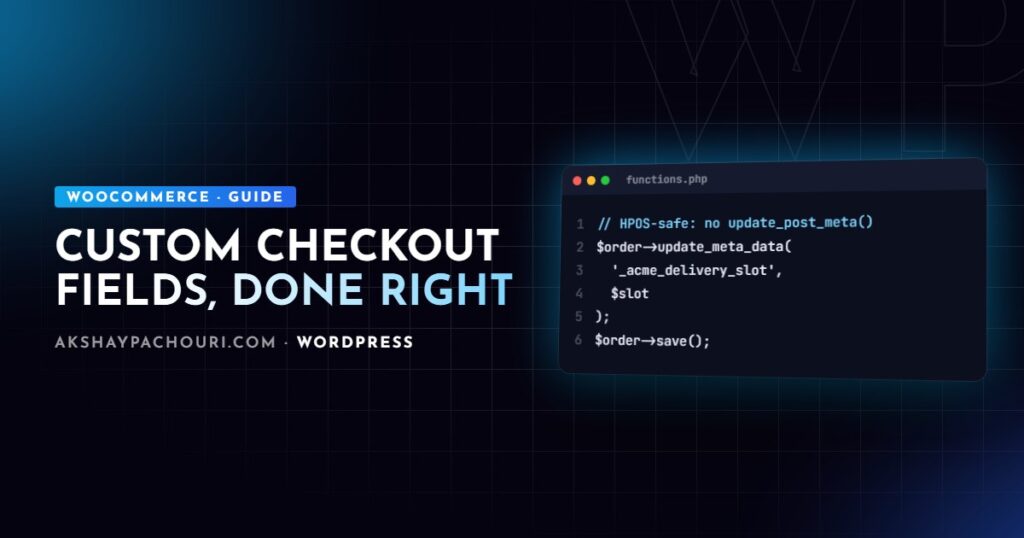
Adding WooCommerce custom checkout fields used to mean one well-known filter. Today there are two completely different checkouts, the classic shortcode checkout and the Checkout block, and code written for one does nothing on the other. This guide covers both approaches, plus validation, saving to order meta in a way that works with High-Performance Order Storage (HPOS), and displaying the data in the admin and in emails.
First, find out which checkout you are running
Open the checkout page in the editor. If it contains the [woocommerce_checkout] shortcode or a “Classic Checkout” block, you are on the classic checkout and PHP hooks like woocommerce_checkout_fields apply. If it contains the “Checkout” block with inner blocks for contact, shipping and payment, you are on the block checkout, which is rendered by React and talks to the Store API. Classic checkout hooks do not fire there at all, which is the single most common reason “my custom field code does nothing”.
New stores get the block checkout by default in recent WooCommerce versions. You can still switch back to the classic checkout, but plugins that only support classic hooks are a growing liability, so plan for blocks if you can.
Declare HPOS compatibility before anything else
With HPOS, orders live in custom tables instead of wp_posts and wp_postmeta. Code that calls update_post_meta( $order_id, ... ) writes to the wrong place and the data silently goes missing. Always go through the order object’s CRUD methods, and declare compatibility in your plugin so WooCommerce does not flag it:
<?php
add_action( 'before_woocommerce_init', function () {
    if ( class_exists( AutomatticWooCommerceUtilitiesFeaturesUtil::class ) ) {
        AutomatticWooCommerceUtilitiesFeaturesUtil::declare_compatibility(
            'custom_order_tables',
            __FILE__,
            true
        );
    }
} );
Only declare it once you have actually removed direct post meta calls for orders.
Classic checkout: adding fields
The woocommerce_checkout_fields filter lets you add fields to the billing, shipping, account or order groups. Here is a VAT number in billing and a delivery note in the order section:
<?php
add_filter( 'woocommerce_checkout_fields', function ( $fields ) {
    $fields['billing']['billing_vat_number'] = array(
        'type'        => 'text',
        'label'       => __( 'VAT number', 'acme' ),
        'required'    => false,
        'class'       => array( 'form-row-wide' ),
        'priority'    => 120,
        'maxlength'   => 20,
    );

    $fields['order']['acme_delivery_slot'] = array(
        'type'     => 'select',
        'label'    => __( 'Delivery slot', 'acme' ),
        'required' => true,
        'options'  => array(
            ''          => __( 'Choose a slot', 'acme' ),
            'morning'   => __( 'Morning (9–12)', 'acme' ),
            'afternoon' => __( 'Afternoon (12–5)', 'acme' ),
        ),
    );

    return $fields;
} );
Fields prefixed with billing_ or shipping_ in those groups are handled specially: WooCommerce tries to save them via a matching setter or as order meta, and on the “My account” side they can be stored against the customer. For anything outside those groups, save explicitly as shown below so behaviour is predictable.
Classic checkout: validation
Built-in required handling covers empty values. For format checks, hook woocommerce_after_checkout_validation, which gives you the posted data and a WP_Error to add to:
<?php
add_action( 'woocommerce_after_checkout_validation', function ( $data, $errors ) {
    $vat = isset( $data['billing_vat_number'] ) ? trim( $data['billing_vat_number'] ) : '';

    if ( $vat !== '' && ! preg_match( '/^[A-Z]{2}[0-9A-Z]{8,12}$/', strtoupper( $vat ) ) ) {
        $errors->add(
            'validation',
            __( 'Please enter a valid VAT number, including the country code.', 'acme' )
        );
    }
}, 10, 2 );
The regex here is a simple shape check, not real VAT validation; if the number affects tax, verify it against the relevant official service.
Classic checkout: saving with HPOS-compatible CRUD
Use woocommerce_checkout_create_order. It runs before the order is saved, so you only set the meta and WooCommerce persists it along with everything else:
<?php
add_action( 'woocommerce_checkout_create_order', function ( WC_Order $order, array $data ) {
    if ( ! empty( $data['billing_vat_number'] ) ) {
        $order->update_meta_data( '_billing_vat_number', sanitize_text_field( $data['billing_vat_number'] ) );
    }

    $allowed = array( 'morning', 'afternoon' );
    if ( isset( $_POST['acme_delivery_slot'] ) && in_array( $_POST['acme_delivery_slot'], $allowed, true ) ) {
        $order->update_meta_data( '_acme_delivery_slot', sanitize_key( $_POST['acme_delivery_slot'] ) );
    }
}, 10, 2 );
If you update an order elsewhere, for example in a later hook, call $order->save() after update_meta_data(). Read values back with $order->get_meta( '_acme_delivery_slot' ), never get_post_meta(). Prefixing keys with an underscore hides them from the generic custom fields box.
Block checkout: the Additional Checkout Fields API
For the Checkout block, WooCommerce provides an Additional Checkout Fields API. It was introduced as experimental and stabilised over several releases in the 8.x line, so check the WooCommerce developer docs for the exact behaviour in your version. You register fields in PHP and WooCommerce renders, validates and stores them for you:
<?php
add_action( 'woocommerce_init', function () {
    if ( ! function_exists( 'woocommerce_register_additional_checkout_field' ) ) {
        return;
    }

    woocommerce_register_additional_checkout_field( array(
        'id'       => 'acme/vat-number',
        'label'    => __( 'VAT number', 'acme' ),
        'location' => 'contact',   // contact | address | order
        'type'     => 'text',
        'required' => false,
        'attributes' => array( 'maxLength' => 20 ),
    ) );

    woocommerce_register_additional_checkout_field( array(
        'id'       => 'acme/delivery-slot',
        'label'    => __( 'Delivery slot', 'acme' ),
        'location' => 'order',
        'type'     => 'select',
        'required' => true,
        'options'  => array(
            array( 'value' => 'morning', 'label' => __( 'Morning (9–12)', 'acme' ) ),
            array( 'value' => 'afternoon', 'label' => __( 'Afternoon (12–5)', 'acme' ) ),
        ),
    ) );
} );
A few rules: the id must be namespaced (vendor/field), supported types are limited (text, select and checkbox at the time of writing), and the order location was called additional in some earlier versions. address fields appear in both billing and shipping forms and are stored separately for each.
Validating block checkout fields
Validation runs server-side on the Store API request. You can pass a validate_callback in the field arguments, or hook the validation action:
<?php
add_action( 'woocommerce_validate_additional_field', function ( WP_Error $errors, $field_key, $field_value ) {
    if ( 'acme/vat-number' === $field_key && $field_value !== ''
        && ! preg_match( '/^[A-Z]{2}[0-9A-Z]{8,12}$/', strtoupper( $field_value ) ) ) {
        $errors->add( 'invalid_vat_number', __( 'Please enter a valid VAT number.', 'acme' ) );
    }
}, 10, 3 );
Reading block checkout values
Values are saved to the order automatically, with HPOS support. Read them through the CheckoutFields service rather than guessing meta keys, since the internal storage keys are an implementation detail:
<?php
use AutomatticWooCommerceBlocksPackage;
use AutomatticWooCommerceBlocksDomainServicesCheckoutFields;

function acme_get_delivery_slot( WC_Order $order ) {
    $fields = Package::container()->get( CheckoutFields::class );
    return $fields->get_field_from_object( 'acme/delivery-slot', $order, 'other' );
}
The third argument is the group: 'billing' or 'shipping' for address fields, 'other' for contact and order fields. Block checkout fields are also shown automatically on the order admin screen and in order emails in current versions, which removes most of the display code below.
Showing classic fields in the admin and in emails
For classic fields you need to display the data yourself. In the order edit screen:
<?php
add_action( 'woocommerce_admin_order_data_after_billing_address', function ( WC_Order $order ) {
    $vat = $order->get_meta( '_billing_vat_number' );
    if ( $vat ) {
        printf( '<p><strong>%s:</strong> %s</p>', esc_html__( 'VAT number', 'acme' ), esc_html( $vat ) );
    }
} );

add_filter( 'woocommerce_email_order_meta_fields', function ( $fields, $sent_to_admin, $order ) {
    $slot = $order->get_meta( '_acme_delivery_slot' );
    if ( $slot ) {
        $fields['acme_delivery_slot'] = array(
            'label' => __( 'Delivery slot', 'acme' ),
            'value' => ucfirst( $slot ),
        );
    }
    return $fields;
}, 10, 3 );
The email filter outputs in both HTML and plain-text emails, which is why I prefer it over echoing markup in woocommerce_email_after_order_table.
Supporting both checkouts in one plugin
If you ship a plugin used on many stores, register the block field and keep the classic hooks. Write a small helper that returns the value from either storage location, so the rest of your code, such as fulfilment exports, does not care which checkout produced the order. Test both checkouts with HPOS on and off (and with compatibility mode syncing) before release. Security matters here too: never trust the posted value, whitelist select options and escape on output, as in my WordPress security hardening checklist. If your checkout fields interact with cart totals, also read why the WooCommerce cart stops updating, since caching issues often surface at checkout first.
Key takeaways
- Check which checkout you run: classic hooks do not fire on the Checkout block.
- Use
$order->update_meta_data()and$order->get_meta(), never post meta functions, and declare HPOS compatibility. - Classic: add with
woocommerce_checkout_fields, validate inwoocommerce_after_checkout_validation, save inwoocommerce_checkout_create_order. - Blocks: register with
woocommerce_register_additional_checkout_field()and read through theCheckoutFieldsservice. - Whitelist select values, sanitise on save and escape on output.
Frequently asked questions
Why do my WooCommerce custom checkout fields not appear?
Your store is most likely using the Checkout block, which ignores classic hooks such as woocommerce_checkout_fields. Register the field with the Additional Checkout Fields API or switch the page back to the classic checkout.
Is update_post_meta safe for order data with HPOS?
No. With HPOS enabled, orders are stored in custom tables, so post meta writes end up in the wrong place. Use $order->update_meta_data() followed by $order->save() when you are outside the checkout save flow.
Can I add custom checkout fields without a plugin?
Yes. The snippets in this guide can live in a small custom plugin or a child theme’s functions file. I recommend a custom plugin so the fields survive a theme change.
Which field types does the block checkout support?
At the time of writing, the Additional Checkout Fields API supports text, select and checkbox fields. Check the WooCommerce developer documentation for your version, as support is expanding.
If you need custom checkout logic that works with blocks, HPOS and your fulfilment workflow, contact me and I can help you build it properly.