A custom Gutenberg block is the cleanest way to give editors structured, on-brand content without shortcodes or page-builder bloat, but the tooling has changed a lot since the early days of the block editor. This guide covers how I build a custom Gutenberg block today: block.json as the single source of truth, scaffolding with @wordpress/create-block, static versus dynamic rendering, attributes, InnerBlocks, styles and variations, and making sure assets only load where the block is used.
Scaffold the block with @wordpress/create-block
Do not hand-roll a webpack config. The official scaffolder generates a plugin with @wordpress/scripts already wired up for building, linting and formatting:
cd wp-content/plugins
npx @wordpress/create-block@latest acme-testimonial --namespace acme
cd acme-testimonial
npm start      # watch mode while developing
npm run build  # production build into /build
Pass --variant dynamic if you want a server-rendered block from the start. The generated src/ folder contains block.json, index.js, edit.js, save.js (or render.php), and SCSS files for the editor and front end. The exact files produced vary a little between versions of the tool, so read what it gives you rather than assuming an older tutorial’s layout.
block.json: the single source of truth
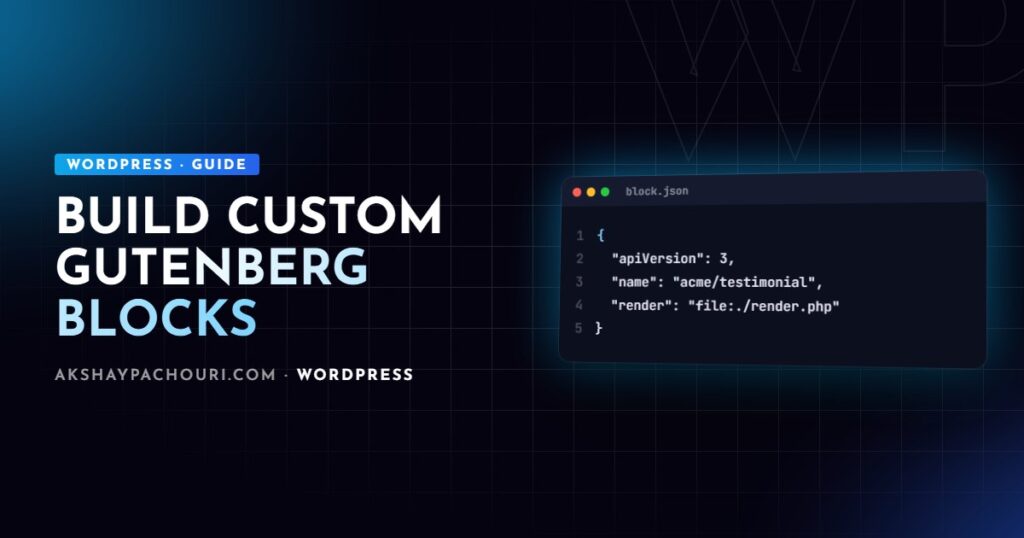
Everything WordPress needs to know about a block lives in block.json: its name, attributes, supports and assets. Both PHP and JavaScript read this file, which keeps server and editor registration in sync.
{
  "$schema": "https://schemas.wp.org/trunk/block.json",
  "apiVersion": 3,
  "name": "acme/testimonial",
  "title": "Testimonial",
  "category": "text",
  "icon": "format-quote",
  "description": "A quote with author name and role.",
  "attributes": {
    "quote": { "type": "string", "source": "html", "selector": "blockquote p" },
    "author": { "type": "string", "default": "" },
    "role": { "type": "string", "default": "" },
    "showRole": { "type": "boolean", "default": true }
  },
  "supports": {
    "html": false,
    "color": { "background": true, "text": true },
    "spacing": { "padding": true }
  },
  "textdomain": "acme",
  "editorScript": "file:./index.js",
  "editorStyle": "file:./index.css",
  "style": "file:./style-index.css"
}
On the PHP side, registration is one call pointing at the built folder:
<?php
add_action( 'init', function () {
    register_block_type( __DIR__ . '/build/testimonial' );
} );
The supports key is underrated. Declaring color, spacing or typography support gives you the standard sidebar controls and theme.json integration for free, instead of building your own colour pickers.
Attributes and the edit function
Attributes are the block’s data. In the editor, edit receives them along with setAttributes. useBlockProps() must be spread on the wrapper so the editor can attach selection, alignment and supports classes.
import { __ } from '@wordpress/i18n';
import { useBlockProps, RichText, InspectorControls } from '@wordpress/block-editor';
import { PanelBody, TextControl, ToggleControl } from '@wordpress/components';

export default function Edit( { attributes, setAttributes } ) {
  const { quote, author, role, showRole } = attributes;

  return (
    <>
      <InspectorControls>
        <PanelBody title={ __( 'Author', 'acme' ) }>
          <TextControl
            label={ __( 'Role', 'acme' ) }
            value={ role }
            onChange={ ( value ) => setAttributes( { role: value } ) }
          />
          <ToggleControl
            label={ __( 'Show role', 'acme' ) }
            checked={ showRole }
            onChange={ ( value ) => setAttributes( { showRole: value } ) }
          />
        </PanelBody>
      </InspectorControls>
      <figure { ...useBlockProps() }>
        <blockquote>
          <RichText
            tagName="p"
            value={ quote }
            onChange={ ( value ) => setAttributes( { quote: value } ) }
            placeholder={ __( 'Write the testimonial…', 'acme' ) }
          />
        </blockquote>
        <RichText
          tagName="figcaption"
          value={ author }
          onChange={ ( value ) => setAttributes( { author: value } ) }
          placeholder={ __( 'Author name', 'acme' ) }
        />
      </figure>
    </>
  );
}
Attributes with a source (like quote above) are parsed from the saved HTML. Attributes without one are stored as JSON in the block comment delimiter. Prefer comment attributes for settings and IDs; use sourced attributes only when the content naturally lives in the markup.
Static blocks: the save function
A static block serialises its HTML into post_content when the post is saved:
import { useBlockProps, RichText } from '@wordpress/block-editor';

export default function save( { attributes } ) {
  const { quote, author, role, showRole } = attributes;
  return (
    <figure { ...useBlockProps.save() }>
      <blockquote>
        <RichText.Content tagName="p" value={ quote } />
      </blockquote>
      <figcaption>
        <RichText.Content value={ author } />
        { showRole && role && <span>{ role }</span> }
      </figcaption>
    </figure>
  );
}
The catch: if you later change this markup, every existing instance shows “This block contains unexpected or invalid content” because the stored HTML no longer matches. The fix is a deprecated array containing the old save and attributes, so WordPress can migrate old content. That maintenance cost is the main reason I default to dynamic blocks for anything likely to evolve.
Dynamic blocks with render.php
A dynamic block saves only its attributes and renders on the server at request time. Markup changes apply everywhere instantly, and you can query live data such as latest posts, prices or stock. Add a render entry to block.json:
"render": "file:./render.php"Then make save return null (or omit the save file entirely), and write the template. WordPress exposes $attributes, $content and $block inside it:
<?php
/**
 * @var array    $attributes
 * @var string   $content
 * @var WP_Block $block
 */
$author    = $attributes['author'] ?? '';
$role      = $attributes['role'] ?? '';
$show_role = ! empty( $attributes['showRole'] );
?>
<figure <?php echo get_block_wrapper_attributes(); ?>>
    <blockquote><p><?php echo wp_kses_post( $attributes['quote'] ?? '' ); ?></p></blockquote>
    <figcaption>
        <?php echo esc_html( $author ); ?>
        <?php if ( $show_role && $role ) : ?>
            <span><?php echo esc_html( $role ); ?></span>
        <?php endif; ?>
    </figcaption>
</figure>
get_block_wrapper_attributes() is the PHP equivalent of useBlockProps: it outputs the block class plus any classes and inline styles generated by supports. Escape everything, just as in any other template. Note that a sourced attribute like quote above will not work in a dynamic block because there is no saved HTML to parse, so in a dynamic version remove its source and selector and store it as a plain string attribute.
Nesting content with InnerBlocks
When editors should compose content inside your block, such as a card with a heading, paragraph and button, use InnerBlocks rather than recreating those fields as attributes:
import { useBlockProps, useInnerBlocksProps } from '@wordpress/block-editor';

const TEMPLATE = [
  [ 'core/heading', { level: 3, placeholder: 'Card title' } ],
  [ 'core/paragraph', { placeholder: 'Card text' } ],
  [ 'core/buttons' ],
];

export function Edit() {
  const blockProps = useBlockProps( { className: 'acme-card' } );
  const innerBlocksProps = useInnerBlocksProps( blockProps, {
    allowedBlocks: [ 'core/heading', 'core/paragraph', 'core/buttons', 'core/image' ],
    template: TEMPLATE,
  } );
  return <div { ...innerBlocksProps } />;
}

export function save() {
  return <div { ...useInnerBlocksProps.save( useBlockProps.save() ) } />;
}
Inner blocks are always saved into post content, even when the parent is dynamic. In a dynamic parent, the rendered inner blocks arrive in render.php as $content, so echo it where the children should appear. Add templateLock: 'all' if the structure must not change, or 'insert' to allow reordering but not adding blocks.
Block styles and variations
Block styles are alternative CSS looks that editors pick from the Styles panel. They add an is-style-{name} class and are declared in block.json:
"styles": [
  { "name": "default", "label": "Default", "isDefault": true },
  { "name": "outlined", "label": "Outlined" }
]
.wp-block-acme-testimonial.is-style-outlined {
border: 2px solid currentColor;
padding: 1.5rem;
}Variations are different: they are presets of attributes and inner blocks that appear as separate entries in the inserter. A “Testimonial with photo” variation might preset an image inner block. You can register them in block.json under variations or in JavaScript with registerBlockVariation(). Use styles for visual differences and variations for structural or data differences.
Enqueue assets only when the block is used
One of the biggest wins of block.json is conditional loading. Scripts declared as viewScript (or viewScriptModule for the Interactivity API) are enqueued only when the block is actually rendered on the page. Front-end styles in style follow the same rule when separate block asset loading is on, which is the default for block themes. Classic themes can opt in:
<?php
add_filter( 'should_load_separate_core_block_assets', '__return_true' );
Test this in your theme before relying on it, and avoid enqueueing block CSS or JS globally with wp_enqueue_scripts; that loads your assets on every page whether the block exists or not, which hurts the metrics in my WordPress Core Web Vitals checklist. If you have several blocks in one plugin, recent WordPress versions also support registering them from a generated manifest; check the Block Editor Handbook for the current API.
Blocks pair naturally with structured data: if you are modelling content types, my guide to custom post types and ACF shows how to feed that data into dynamic blocks.
Key takeaways
- Scaffold with
npx @wordpress/create-block@latestand let@wordpress/scriptshandle the build. - Treat
block.jsonas the source of truth and register withregister_block_type()pointing at the build folder. - Use
supportsfor colour, spacing and typography instead of custom controls. - Prefer dynamic blocks with
render.phpfor anything whose markup or data may change; static blocks need deprecations when markup changes. - Use InnerBlocks for composable content, styles for visual alternatives and variations for presets.
- Declare assets in
block.jsonso they load only on pages that use the block.
Frequently asked questions
Why does my block say “This block contains unexpected or invalid content”?
The HTML generated by your current save function no longer matches what was stored in the post. Add the previous version to a deprecated array so WordPress can migrate old content, or switch the block to dynamic rendering.
Should I build a static or dynamic Gutenberg block?
Use a static block for simple, stable markup where you want content stored in the database independent of your plugin. Use a dynamic block when the output depends on live data or the markup is likely to change over time.
Do I need React knowledge to build a custom Gutenberg block?
You need basic React and JSX for the editor side, since the edit function is a React component. Dynamic blocks let you keep the front-end output in plain PHP.
How do I load block CSS only on pages that use the block?
Declare the stylesheet under style or viewStyle in block.json rather than enqueueing it globally. Block themes load these on demand by default, and classic themes can opt in with the should_load_separate_core_block_assets filter.
Need a set of custom blocks that your editors will actually enjoy using? Contact me to discuss a block library for your site.