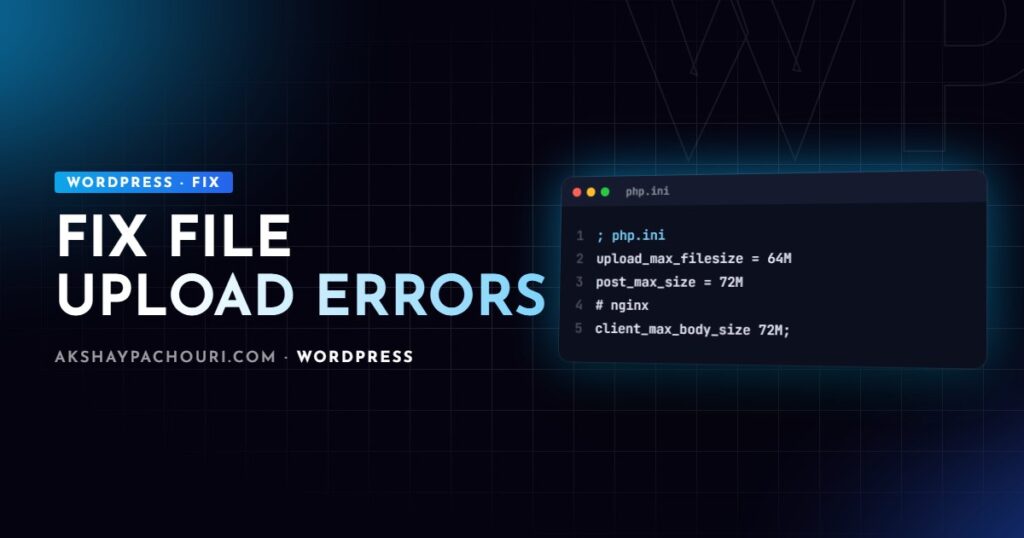
A WordPress file upload error can show up as several different messages, and each one points at a different layer: HTTP error. in the media uploader, The uploaded file exceeds the upload_max_filesize directive in php.ini., Missing a temporary folder., Sorry, you are not allowed to upload this file type., or an Nginx page saying 413 Request Entity Too Large. This guide maps each message to its cause and gives you the exact fix.
Quick fix
The most common case is a file larger than the server allows. Raise the limits in the right place for your stack:
- Check the current maximum under Media → Add New (“Maximum upload file size”) or in Tools → Site Health → Info → Media Handling.
- Raise the PHP limits. In
php.ini, or a.user.iniin the WordPress root on PHP-FPM hosts:; php.ini or .user.ini upload_max_filesize = 64M post_max_size = 72M memory_limit = 256M max_execution_time = 120 max_input_time = 120 - On Nginx, raise the request body limit too, then reload:
server { client_max_body_size 72M; } - Restart PHP-FPM (or wait for
.user.inito be re-read) and confirm the new maximum in the media screen.
post_max_size must be larger than upload_max_filesize, because the whole POST request, file plus form fields, has to fit inside it.
Errors and causes, most to least common
“The uploaded file exceeds the upload_max_filesize directive in php.ini.”
Exactly what it says: PHP rejected the file before WordPress saw it. Fix it with the settings above. On shared hosting, use the host’s PHP settings screen, since php.ini edits may not be allowed. If your host runs Apache with mod_php you can use .htaccess, but on PHP-FPM those directives cause a 500 error:
# Apache + mod_php only
php_value upload_max_filesize 64M
php_value post_max_size 72M
A related, sneakier case: if the file exceeds post_max_size, PHP discards the entire request body, so WordPress may show a vague error or nothing at all, rather than the upload_max_filesize message.
“413 Request Entity Too Large”
This comes from Nginx (or a proxy or CDN in front of it), not PHP. Nginx’s default client_max_body_size is 1M, so anything bigger fails until you raise it in the http, server or location block. If you use a CDN or load balancer, check its upload size limit as well, as some plans cap request bodies.
“HTTP error.” in the media uploader
This is the vaguest message because the upload request failed with no usable response. The usual culprits:
- Image processing ran out of memory or time. After the file arrives, WordPress generates every registered image size. A large photo decompressed into memory can exceed the limit, and the request dies. Smaller files upload fine, which is the giveaway.
- A security rule such as mod_security or a WAF blocking the request.
- A timeout at the proxy or PHP level on slow connections.
Check the PHP error log and wp-content/debug.log right after a failed upload; the real error is usually there.
Image editor memory: Imagick vs GD (the one people miss)
WordPress prefers Imagick when it is installed, and falls back to GD. Imagick has its own resource limits and threading behaviour, and on some servers it is the reason large images fail with an HTTP error even when PHP memory looks generous. As a test, force GD:
<?php
add_filter( 'wp_image_editors', function ( $editors ) {
    return array( 'WP_Image_Editor_GD', 'WP_Image_Editor_Imagick' );
} );
If uploads start working, keep the filter or tune Imagick with your host. Also reduce the work done per upload: WordPress scales down very large images to a “big image” threshold (2560px by default), and every extra image size registered by your theme and plugins adds another resize. Remove sizes you never use:
<?php
add_filter( 'intermediate_image_sizes_advanced', function ( $sizes ) {
    unset( $sizes['1536x1536'], $sizes['2048x2048'] );
    return $sizes;
} );
WordPress uses WP_MAX_MEMORY_LIMIT for image processing, so raising it can help too. See my guide to fixing the WordPress memory exhausted error for how those limits interact.
“Unable to create directory wp-content/uploads/2026/11. Is its parent directory writable by the server?”
A file permission or ownership problem, common after migrations or when files were uploaded by a different user over FTP. Directories should be 755 and files 644, owned by the user PHP runs as:
# Run from the WordPress root; replace www-data with your PHP user
sudo chown -R www-data:www-data wp-content/uploads
find wp-content/uploads -type d -exec chmod 755 {} ;
find wp-content/uploads -type f -exec chmod 644 {} ;
Do not “fix” it with 777; that makes the directory writable by every user on the server. Also check the upload path under wp option get upload_path; a leftover absolute path from an old server breaks uploads silently.
“Missing a temporary folder.”
PHP could not write the incoming file to its temporary directory, usually because upload_tmp_dir points to a folder that does not exist or is not writable, or the disk is full. Set a valid directory in PHP’s configuration:
; php.ini
upload_tmp_dir = /var/www/example.com/tmp
Create that folder, make it writable by the PHP user, and restart PHP-FPM. You will often see advice to define WP_TEMP_DIR in wp-config.php; that constant sets the folder WordPress uses for its own temporary files such as update downloads, but it does not change where PHP stores uploaded files, so on its own it does not fix this error. Also check free disk space with df -h.
“Sorry, you are not allowed to upload this file type.”
WordPress only accepts an allowlist of MIME types, and checks that the file’s real content matches its extension. To allow a new type, add it through the upload_mimes filter, narrowly:
<?php
add_filter( 'upload_mimes', function ( $mimes ) {
    // Allow only for users who can manage options.
    if ( current_user_can( 'manage_options' ) ) {
        $mimes['webm'] = 'video/webm';
        $mimes['json'] = 'application/json';
    }
    // Remove types you never want uploaded.
    unset( $mimes['exe'] );
    return $mimes;
} );
If the type is in the allowlist but uploads still fail, the server’s file-type detection may report a different MIME type than you declared; check what finfo returns for your file. Be very careful with SVG: it is XML that can contain scripts, so only allow it with a sanitiser plugin and only for trusted roles. Never set ALLOW_UNFILTERED_UPLOADS on a production site. My WordPress security hardening checklist explains why upload restrictions matter.
Step-by-step diagnosis
- Note the exact message and the file size and type.
- Try a tiny image. If it uploads, the problem is size, memory or processing, not permissions.
- Check effective PHP values, not what you think you set:
wp eval 'foreach (["upload_max_filesize","post_max_size","memory_limit","upload_tmp_dir"] as $k) echo "$k = " . ini_get($k) . PHP_EOL;'WP-CLI may use a different
php.inithan the web server, so compare with Site Health. - Read the logs: PHP error log,
debug.log, and the Nginx or Apache error log for 413s and permission denials. - Disable security and image-optimisation plugins on staging and retry.
Prevention
- Set upload, post, memory and Nginx body limits together as part of server provisioning.
- Resize huge images before upload, or let editors know the practical size limit.
- Keep registered image sizes to the ones your theme actually uses.
- Fix ownership after migrations so PHP owns
wp-content/uploads. - Extend
upload_mimesonly for specific types and roles.
Key takeaways
- Size errors need matching
upload_max_filesize,post_max_sizeand Nginxclient_max_body_sizevalues. - “HTTP error” usually means image processing failed; check memory and try GD instead of Imagick.
- “Missing a temporary folder” is fixed in PHP’s
upload_tmp_dir, not byWP_TEMP_DIRalone. - Permission errors need correct ownership and 755/644, never 777.
- Allow new file types narrowly with
upload_mimesand treat SVG as a security risk.
Frequently asked questions
Why does WordPress show “HTTP error” when uploading images?
Usually the server ran out of memory or time while generating image sizes, or a security rule blocked the request. Check the error logs, raise memory limits and try switching the image editor from Imagick to GD.
How do I increase the maximum upload size in WordPress?
Raise upload_max_filesize and a slightly larger post_max_size in php.ini or your host’s PHP settings, and on Nginx raise client_max_body_size. WordPress itself cannot raise these server limits.
How do I fix “Sorry, you are not allowed to upload this file type”?
Add the extension and its MIME type through the upload_mimes filter, ideally only for trusted roles. If it still fails, the server may detect a different MIME type for the file than the one you declared.
Is it safe to allow SVG uploads in WordPress?
Only with sanitisation, because SVG files can contain JavaScript. Use a plugin that sanitises SVGs on upload and restrict uploads to trusted users.
If uploads are still failing and you would rather have someone check the server for you, get in touch and I will help you track it down.