The WordPress memory exhausted error looks like this: Fatal error: Allowed memory size of 134217728 bytes exhausted (tried to allocate 20480 bytes) in /wp-includes/.... Sometimes you see the full message, sometimes only a white screen or “There has been a critical error on this website”. Either way, a PHP process hit its memory ceiling and was killed. Raising the limit often makes the message go away, but the real fix is understanding which limit you hit and what is consuming the memory.
Quick fix
- Check the actual PHP limit under Tools → Site Health → Info → Server → PHP memory limit. The number in the error (134217728 bytes = 128 MB) tells you what limit was in force.
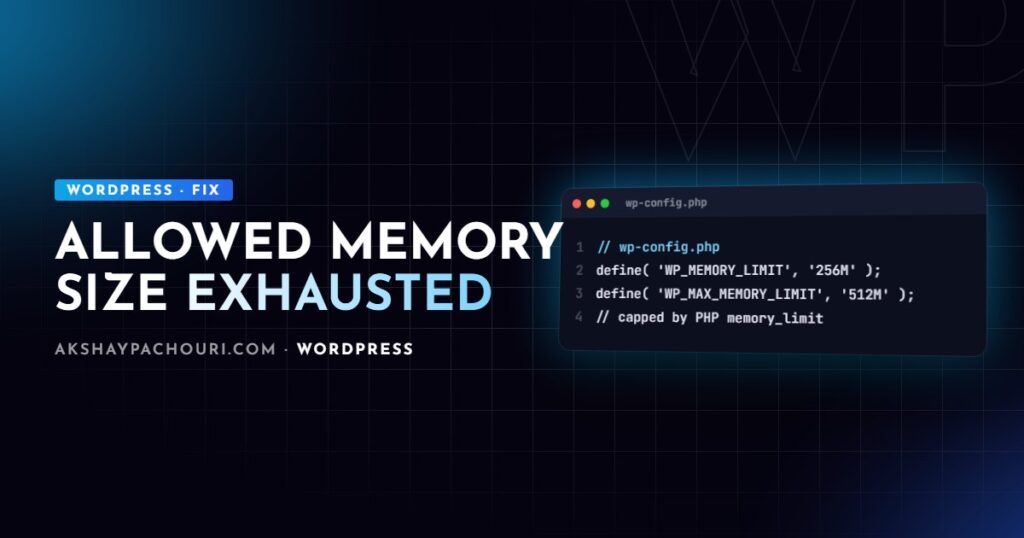
- Add these lines to
wp-config.php, above the/* That's all, stop editing! */line:<?php define( 'WP_MEMORY_LIMIT', '256M' ); // front end define( 'WP_MAX_MEMORY_LIMIT', '512M' ); // admin, image processing, updates - If Site Health still shows the old value, the host’s PHP
memory_limitis capping you. Raise it inphp.ini,.user.inior your hosting panel (examples below). - If the error returns even with a generous limit, something is leaking or loading too much. Find it with the diagnosis steps below rather than raising the limit again.
Understand the three limits
There are three settings and people mix them up constantly:
- PHP
memory_limitis the hard ceiling, set by the server. Everything else operates within it unless PHP allows scripts to raise it at runtime. WP_MEMORY_LIMITis what WordPress tries to set for normal requests. The default is 40M (64M on multisite). WordPress only raises the limit with this value; if PHP’s limit is already higher, WordPress leaves it alone.WP_MAX_MEMORY_LIMITis used in the admin and for memory-heavy tasks such as image editing, viawp_raise_memory_limit(). The default is 256M.
So defining WP_MEMORY_LIMIT as 512M on a host that caps memory_limit at 128M and blocks ini_set changes nothing. That is why “I added the constant and nothing happened” is so common.
Common causes, most to least likely
1. The host limit is genuinely too low
Cheap shared plans sometimes ship with 64M or 128M, which a WooCommerce store with a page builder can exceed on normal admin pages. Raise PHP’s limit where your host allows it:
# .htaccess (Apache with mod_php only; causes a 500 on PHP-FPM)
php_value memory_limit 256M
On PHP-FPM, put this in a .user.ini file in the WordPress root instead (PHP caches these files, so it can take a few minutes to apply):
; .user.ini
memory_limit = 256M
If none of these take effect, the host enforces a cap and only their support or a higher plan can change it.
2. A plugin or theme loading too much data
The classic pattern is a query that loads every post at once, such as posts_per_page => -1 on a site with tens of thousands of posts, or a related-products feature that hydrates full objects for the whole catalogue. Look at the file path in the error: if it points into a plugin, that is your first suspect. If it points into wp-includes, the core file is just where memory ran out, not necessarily the cause.
3. Imports, exports and bulk operations
Importers that process thousands of rows in a single request accumulate objects in WordPress’s internal object cache. For your own batch scripts, process in chunks and suspend cache additions:
<?php
wp_suspend_cache_addition( true );

$paged = 1;
do {
    $ids = get_posts( array(
        'post_type'      => 'product',
        'posts_per_page' => 200,
        'paged'          => $paged++,
        'fields'         => 'ids',
        'no_found_rows'  => true,
    ) );
    foreach ( $ids as $id ) {
        acme_process_product( $id );
    }
    wp_cache_flush_runtime(); // clears the in-memory cache (WP 6.0+)
} while ( $ids );
Better still, run large jobs from WP-CLI, which avoids web timeouts and lets you set the limit per command.
4. Large image uploads
Image processing is memory-hungry because the image is decompressed in RAM: a large camera JPEG takes far more memory than its file size. If uploads of big photos fail while small ones work, this is the cause. WordPress uses WP_MAX_MEMORY_LIMIT for image work, so raise that, and consider resizing images before upload. My WordPress file upload errors guide covers the image editor side in depth.
5. Bloated autoloaded options (the one people miss)
Every request loads all autoloaded options from wp_options into memory. Plugins that store logs or large caches as autoloaded options can push every page load closer to the limit, so the error appears randomly on pages that do nothing special. Check the total:
SELECT ROUND(SUM(LENGTH(option_value)) / 1024 / 1024, 2) AS autoload_mb
FROM wp_options
WHERE autoload IN ('yes', 'on', 'auto-on', 'auto');
Several megabytes here is a red flag. My WordPress database optimisation guide shows how to find and fix the offenders.
6. Infinite recursion
A hook that triggers itself, such as a save_post callback calling wp_update_post() without removing itself first, keeps allocating until memory runs out. The tell is an error where “tried to allocate” is small and the same function repeats in the stack trace.
Step-by-step diagnosis
Read the error properly
Enable logging in wp-config.php so you get the full message and file path:
<?php
define( 'WP_DEBUG', true );
define( 'WP_DEBUG_LOG', true );     // writes to wp-content/debug.log
define( 'WP_DEBUG_DISPLAY', false );
Two numbers matter. The allowed size shows which limit was enforced. The “tried to allocate” value hints at the cause: a small value means memory crept up gradually (lots of objects, a loop, recursion), while a huge single allocation points to one massive query result, file or image.
Isolate the plugin with WP-CLI
If the admin is unreachable, WP-CLI still works. It also has its own PHP memory limit, which you can raise for a single command:
# Does the site load with no plugins?
wp option get home --skip-plugins --skip-themes

# Deactivate everything, then reactivate one by one
wp plugin deactivate --all
wp plugin activate woocommerce

# Run a heavy command with more memory
php -d memory_limit=1024M "$(which wp)" wc product list --user=1
If you cannot deactivate everything on a live store, use a staging copy. When the site is completely down, my guide to fixing the WordPress critical error walks through recovery mode.
Measure memory per page
Install Query Monitor on staging and compare peak memory on a light page, a heavy page and the failing page. It also lists slow and duplicate queries, which frequently explain the memory spike. For a quick check you can log peak usage yourself:
<?php
add_action( 'shutdown', function () {
    error_log( sprintf(
        '%s peak: %.1f MB',
        $_SERVER['REQUEST_URI'] ?? 'cli',
        memory_get_peak_usage( true ) / 1048576
    ) );
} );
Remove it after diagnosing; it writes a log line on every request.
Prevention
- Never use unbounded queries in production code; paginate and use
'fields' => 'ids'where possible. - Keep the autoloaded options total small and audit it after installing plugins.
- Run imports, migrations and bulk updates through WP-CLI in batches.
- Set realistic limits: 256M for most sites, more for large WooCommerce admin work. Avoid
memory_limit = -1, which removes the safety net entirely. - Add a persistent object cache such as Redis for busy sites; it reduces database work, although it does not by itself reduce per-request PHP memory.
Key takeaways
- The error shows which limit was enforced; check Site Health to see the real PHP limit.
WP_MEMORY_LIMITandWP_MAX_MEMORY_LIMITcannot exceed what the host allows.- Small “tried to allocate” values suggest gradual growth or recursion; huge ones suggest a single massive load.
- Use WP-CLI with
--skip-pluginsand a per-command memory limit to isolate the cause. - Raising the limit is a mitigation; fixing the query, import or plugin is the cure.
Frequently asked questions
What is the difference between WP_MEMORY_LIMIT and WP_MAX_MEMORY_LIMIT?
WP_MEMORY_LIMIT applies to normal front-end requests, while WP_MAX_MEMORY_LIMIT is used in the admin and for heavy tasks like image processing. Both are capped by the server’s PHP memory_limit if the host blocks runtime changes.
Why does the WordPress memory exhausted error persist after I increased the limit?
Either the host enforces a lower PHP cap that overrides your constant, or code is consuming memory without bound, in which case any limit will eventually be exceeded. Confirm the effective limit in Site Health, then find the cause with debug logging and plugin isolation.
How much memory does WordPress need?
A simple blog runs comfortably within 128M, while 256M is a sensible baseline for WooCommerce and page-builder sites. If you need much more than that for ordinary page loads, treat it as a sign of a problem rather than a requirement.
Is it safe to set memory_limit to -1?
It is not a good idea on a web server. With no limit, a runaway script can consume all available RAM and affect every site on the server instead of failing one request.
If your site keeps running out of memory and you want the root cause found rather than the limit raised again, get in touch and I can take a look.